September 24, 2026
Internet down mid-rush? Learn how an offline POS system works, what functions stay active, key features to buy for, and what happens when sync resumes.

Wi Fi drops at the worst time. Orders stack up, the kitchen needs tickets, and delivery tablets keep buzzing.
An offline POS system keeps service moving when the internet goes down, so you can keep taking orders, print tickets, and record sales until the connection returns.
This guide explains what an offline POS is, how offline mode works during a real outage, which features to prioritize before you buy, and what to expect when your system syncs back online.
Ready to see if your setup can keep up during the next outage?
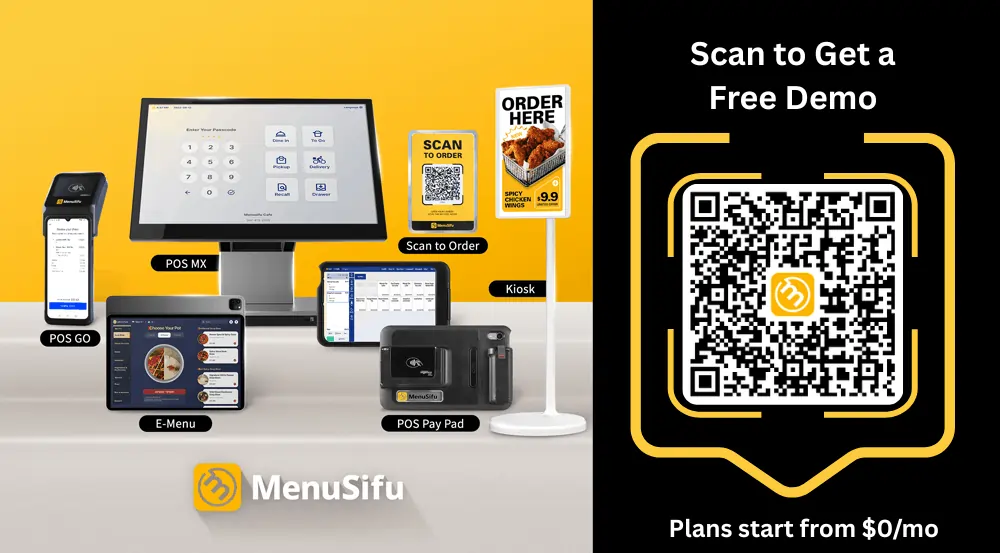
An offline POS lets you keep operating even when the internet drops. The system runs key tasks on the terminal using saved menu and settings, then syncs data once the connection returns. An offline point-of-sale system protects service flow during ISP outages, weak cellular coverage, or busy periods when every minute counts.
Here is what an offline point of sale system typically keeps running:
Offline does not always mean zero connectivity. Many setups lose internet access but keep the local network active, so terminals, printers, and KDS screens can still communicate on-site.
Your POS switches from cloud communication to local processing when your connection goes down. It uses saved menu data to keep service moving, stores transactions on the device, then syncs everything once the connection returns.
Most systems follow the same pattern:
Order-taking and check management
Ring items in, split checks, move items, send courses, and close out cash checks so service stays consistent.
Menu and price availability (cached data)
Your POS pulls from the last synced menu, including modifiers, taxes, and service charges, so staff can keep ringing accurately.
Kitchen printing or KDS (local routing)
Tickets can still be printed and routed to stations when your printers or KDS run on a local network. This keeps the line moving during rush periods.
Cash payments
Accept cash, open the drawer, and track the shift's totals.
Discounts, taxes, and service charges (cached rules)
Apply promos and fees based on stored rules. The POS records every adjustment for later sync.
Card payments
Some setups support card acceptance during outages, while others require an active connection. Your payment gateway and device settings drive this.
Gift cards and loyalty lookups
Balance checks and point redemptions often need live access, so these features may pause temporarily.
Real-time reporting across stores
Locations can keep selling, but consolidated dashboards may lag until sync completes.
Third-party integrations (delivery, accounting, inventory)
Tools that rely on live data can pause, then catch up after reconnection.
Online ordering updates
Orders may continue to print if they arrive before the outage, but new updates can pause until the connection returns, depending on your setup.
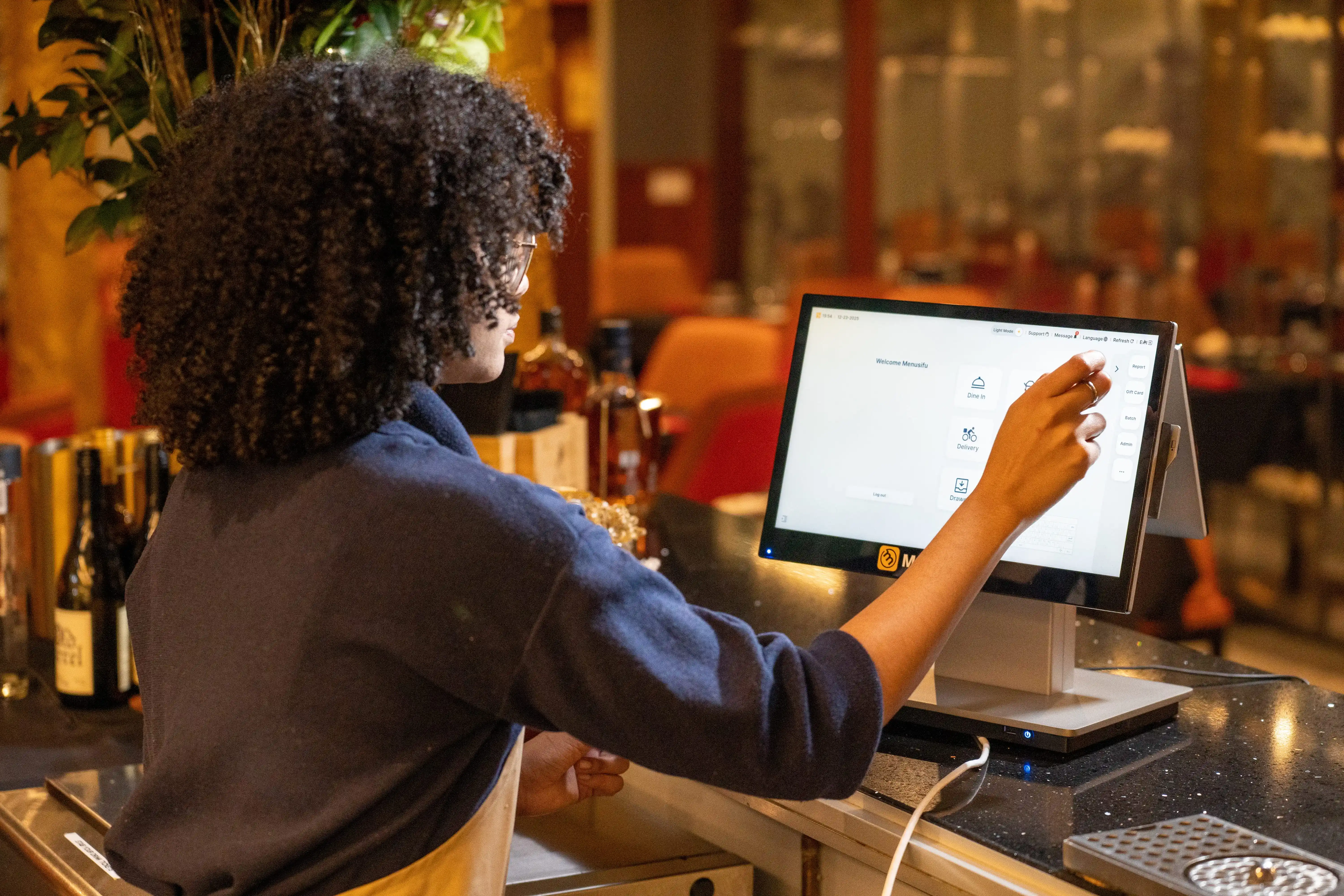
During an outage mid-service, your POS has one job: keep orders moving and save every sale so you can sync later. Use this quick checklist to compare the point-of-sale systems' offline modes and spot gaps before they cost you tickets, time, and revenue.
If a provider can demo these behaviors live by disconnecting the internet and still taking orders, printing tickets, and syncing cleanly afterward, you are looking at an offline mode that fits real service conditions.
Once the internet returns, your POS starts syncing. It uploads the sales and order data it saved locally, then refreshes cloud reporting so everything lines up again.
Here’s what a well-designed offline POS system does during sync:
Good systems also flag items that need a quick look. For example, a transaction that didn’t upload, a payment that needs review, or a terminal that hasn’t completed sync yet. That way, you can spot issues early and keep the next shift moving.
If your internet cuts out more than you would like, treat offline mode like a core requirement, not a bonus feature. Use the steps below to narrow your options quickly and pick a setup that keeps orders moving during service.
Start with the parts of service you cannot pause. Keep it short and practical.
Most restaurants put these at the top:
Write your list like a shift lead would. If a task must work during a Friday rush, put it on the list.
Skip screenshots and promises. Request a demo that demonstrates offline mode in real time.
During the demo, have the rep:
If the vendor cannot run a full outage demo, keep looking.
Offline payments vary by processor, device, and settings. Get a clear answer on how payments behave when the internet drops.
Cover these points:
Ask for the exact offline flow in writing, especially if you handle high ticket volume or delivery-heavy shifts.
Offline mode looks different once you add more terminals, printers, and locations.
In one store, confirm:
Across several stores, confirm:
This step prevents the “it worked in the demo” surprise after you roll out to multiple counters or multiple sites.
Offline sales have to land in the right place after the connection returns. Verify the system gives you a clean paper trail.
Look for:
If your operation runs tight food cost controls or needs clean shift accountability, this step saves time later.
Offline mode helps, but basic backups keep the operation stable when outages drag on.
Build a simple backup stack:
These backups cost far less than a bad rush hour outage.
If you follow these steps, you will quickly spot the difference between a POS that pauses when the internet drops and an offline POS that keeps your orders, kitchen flow, and reporting on track.
Internet outages should not force your team to stop taking orders or leave the kitchen waiting on tickets. A solid offline POS setup keeps service moving, saves every sale locally, and syncs cleanly when the connection returns. Prioritize offline functions that align with your actual shift flow, test offline mode in a live demo, and set up simple backups so you stay ready for the next drop.
If you want to see what this looks like in real service conditions, book a free demo with us today. MenuSifu POS combines dependable on-site performance with the flexibility of cloud access, so you can keep ordering and ticketing stable on the floor while still checking reports from anywhere. You also get a full restaurant-focused suite shaped by years of real operator feedback, so your setup fits daily service, rush periods, and multi-location needs.
When the internet drops, you still need to keep orders flowing, send tickets to the kitchen, and take payments where your setup allows. These FAQs explain what an offline-capable POS can handle during an outage and what resumes once you’re back online.
Yes. An offline-capable POS lets you take payments and record sales during an outage, then syncs transactions, inventory, and reports once the connection returns. Keep in mind that some features may pause offline, like real-time analytics, cloud backups, online orders, and certain card payment types that require instant authorization.
A POS machine does not always require internet. An offline POS runs sales, prints receipts, and stores transactions locally during outages. It needs internet to sync data to the cloud, back up records, update software, and process most card or QR payments, so it uploads sales automatically once the connection returns.
An offline POS transaction is a sale your POS records while the internet is down. The system saves the order and payment details locally, keeps service moving, then syncs the transaction to your reports once the connection returns. Card payment handling depends on your processor and settings, so confirm what your setup supports during outages.
A POS offline merchant account is a payment processing setup that lets your offline POS system accept and record card transactions during internet outages. The POS stores transactions securely and sends them to the processor for authorization and settlement once the connection returns, based on your provider’s offline limits and rules.
A hybrid POS terminal combines local processing with cloud sync. It runs core checkout and order functions on the device and then syncs sales data to the cloud when internet service returns. Many setups keep basic transactions active during outages, but payment rules and offline limits depend on the processor and configuration.
For more guides like this, visit our blog for fresh updates on POS features, restaurant operations, and practical ways to keep service consistent.
DISCLAIMER: This article provides general information about offline POS systems for restaurant operations. Features and offline capabilities vary by POS provider, hardware, payment processor, and local network setup. Confirm offline payment rules, sync behavior, and supported functions with your POS vendor and processor before making decisions based on this content.
Related Articles: