October 12, 2026
Need a POS that fits? Review 8 types of POS systems for restaurants, then use demo checkpoints for menus, permissions, offline performance, reporting, support.
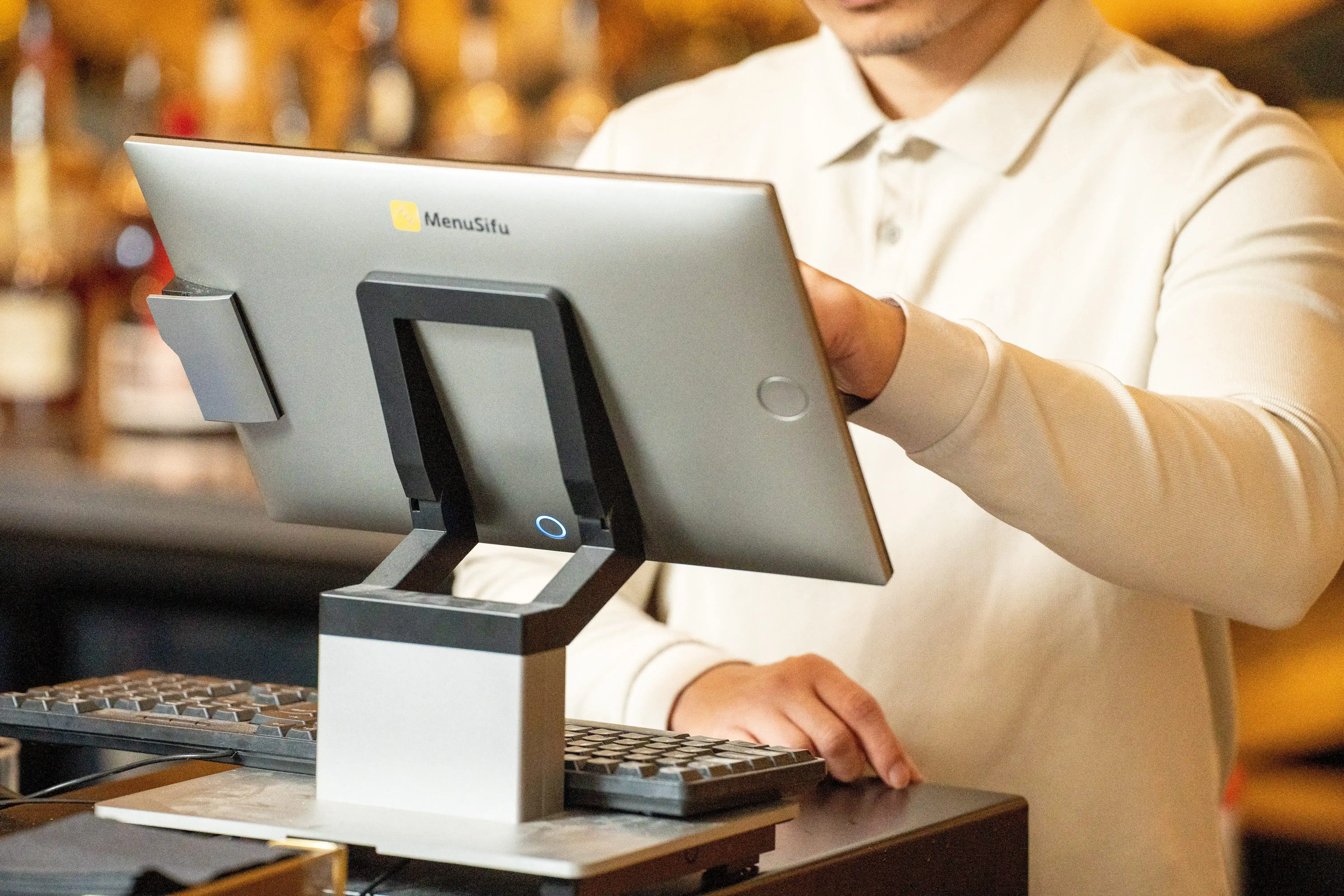
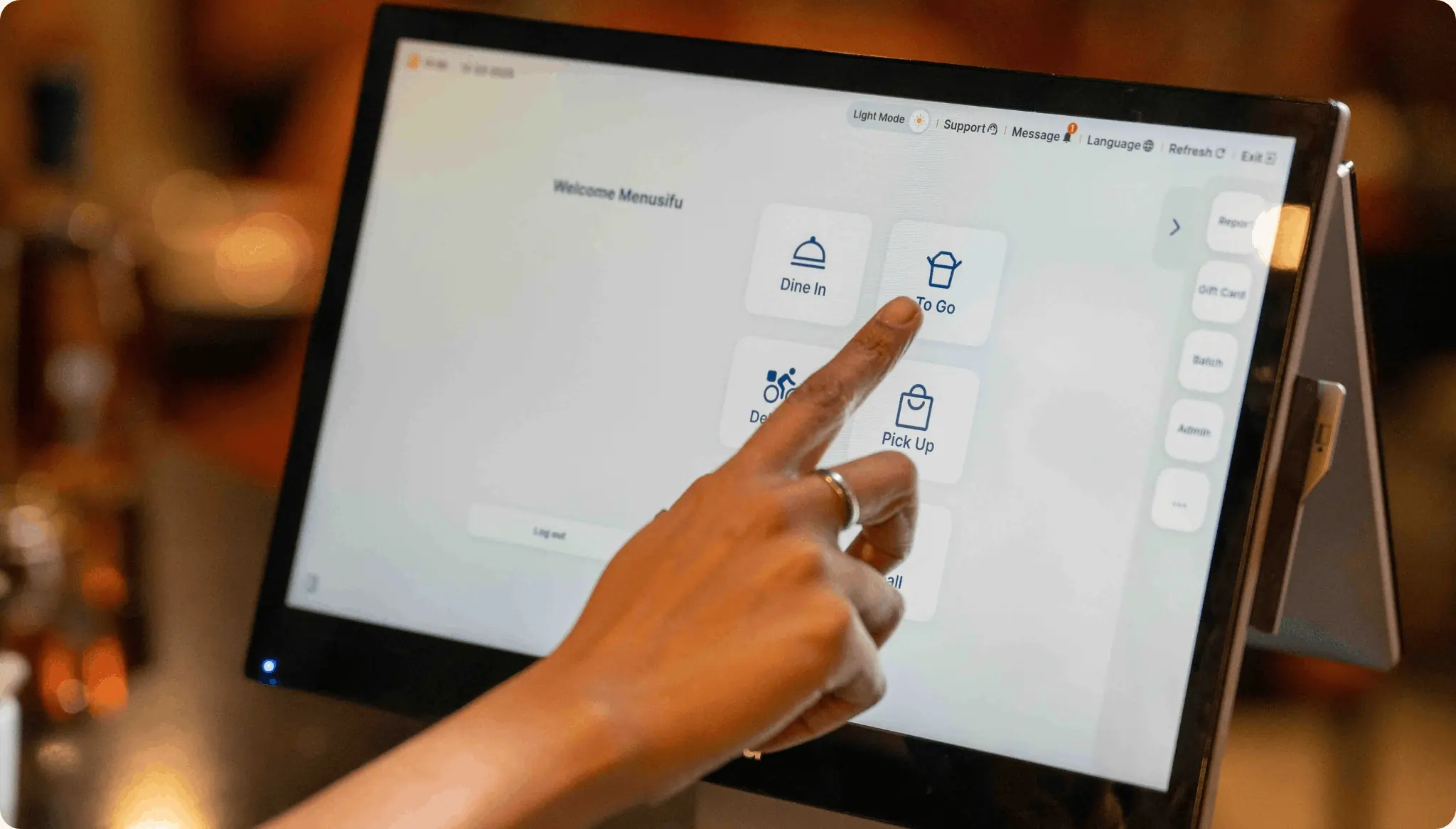
POS demos can look similar until you put them under real shift pressure. If you’re comparing providers, start by narrowing the types of POS systems for restaurants to the ones that fit your service style, team workflows, and reporting needs.
This post breaks down the main POS categories and shows you how to choose the right one based on order flow, kitchen routing, payments, and multi-location control. Ready to shortlist vendors and run a demo that reflects your busiest shift?
POS options look similar on the surface, so start by picking the category that fits how your team takes orders, sends tickets to the kitchen, and closes checks. Once you know the right type, you can compare vendors faster and focus demos on real workflows instead of broad feature lists.
Traditional on-premise POS runs on local servers or back-office equipment at your location. Many operators pick this route when they want tighter local control and they have the internal support to manage hardware, updates, and troubleshooting.
Best for: locations with stable, established processes and in-house IT support
Pros:
Trade-offs:
Good fit examples:
What to look for in a demo: show a full closeout, manager approvals for comps/voids, and end-of-day reporting, then ask the vendor to walk through updates and hardware support.
Cloud-based POS stores data online and gives you access to reporting, user management, and menu updates from anywhere. This option works well when you want quicker updates and easier oversight, especially across more than one location.
Best for: most modern restaurants, especially those wanting remote access and easier updates
Pros:
Trade-offs:
Good fit examples:
What to look for in a demo: menu updates, permissions by role, multi-store reporting, and a clear explanation of what happens during an internet outage.
Hybrid POS blends cloud access with stronger local continuity. You get cloud reporting and centralized tools, plus local options that help keep service moving if connectivity drops.
Best for: restaurants that want cloud tools with stronger offline continuity
Pros:
Trade-offs:
Good fit examples:
What to look for in a demo: a live walkthrough of offline behavior for orders, kitchen routing, and payments, plus how the system syncs after service returns.
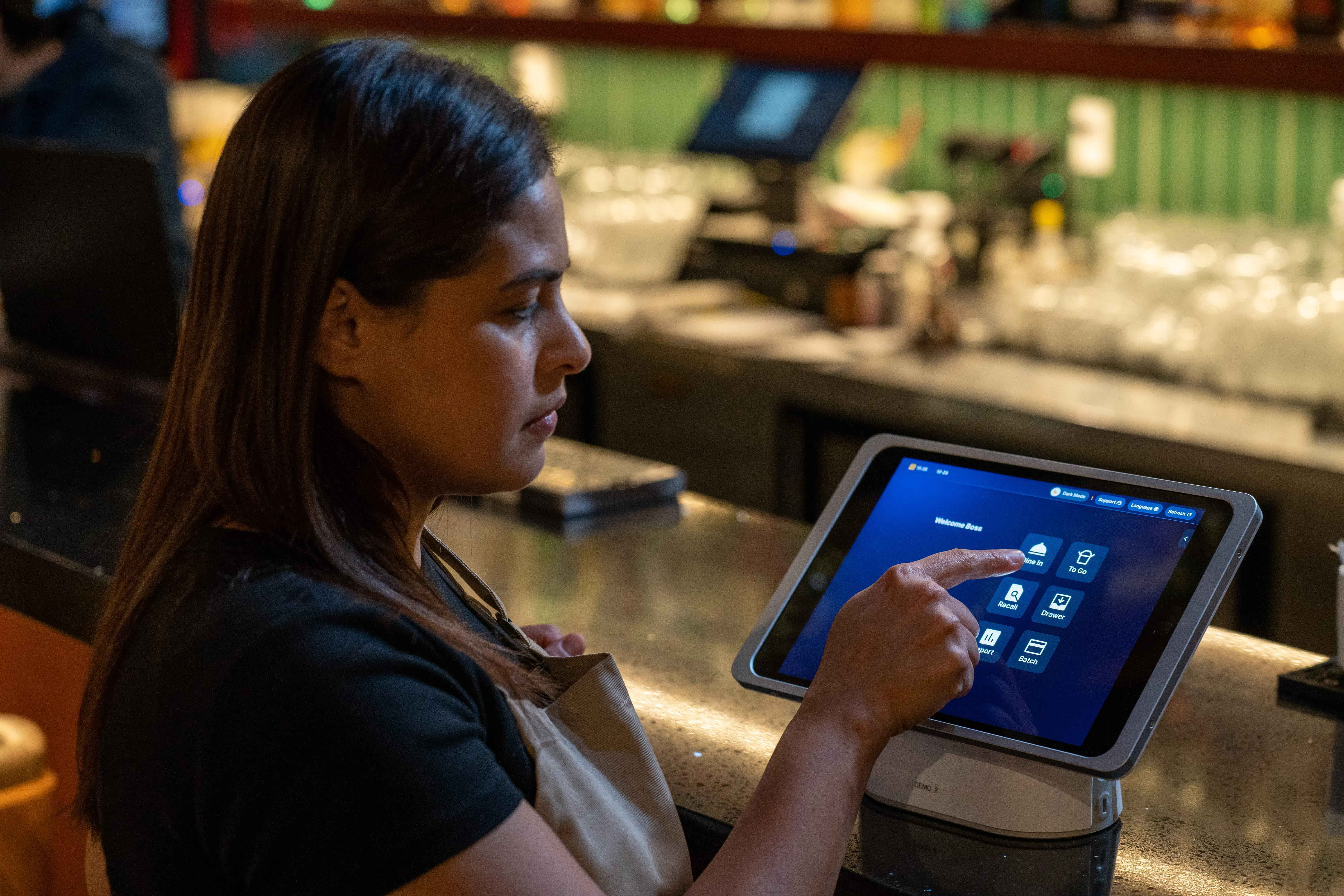
Mobile POS uses handheld devices for ordering and payment tasks on the floor. This style speeds up table service, supports line-busting at the counter, and reduces trips back to a fixed terminal.
Best for: speed-of-service and tighter floor coverage
Pros:
Trade-offs:
Good fit examples:
What to look for in a demo: tableside ordering with modifiers, split checks, tips, manager approvals, and device-level permissions.
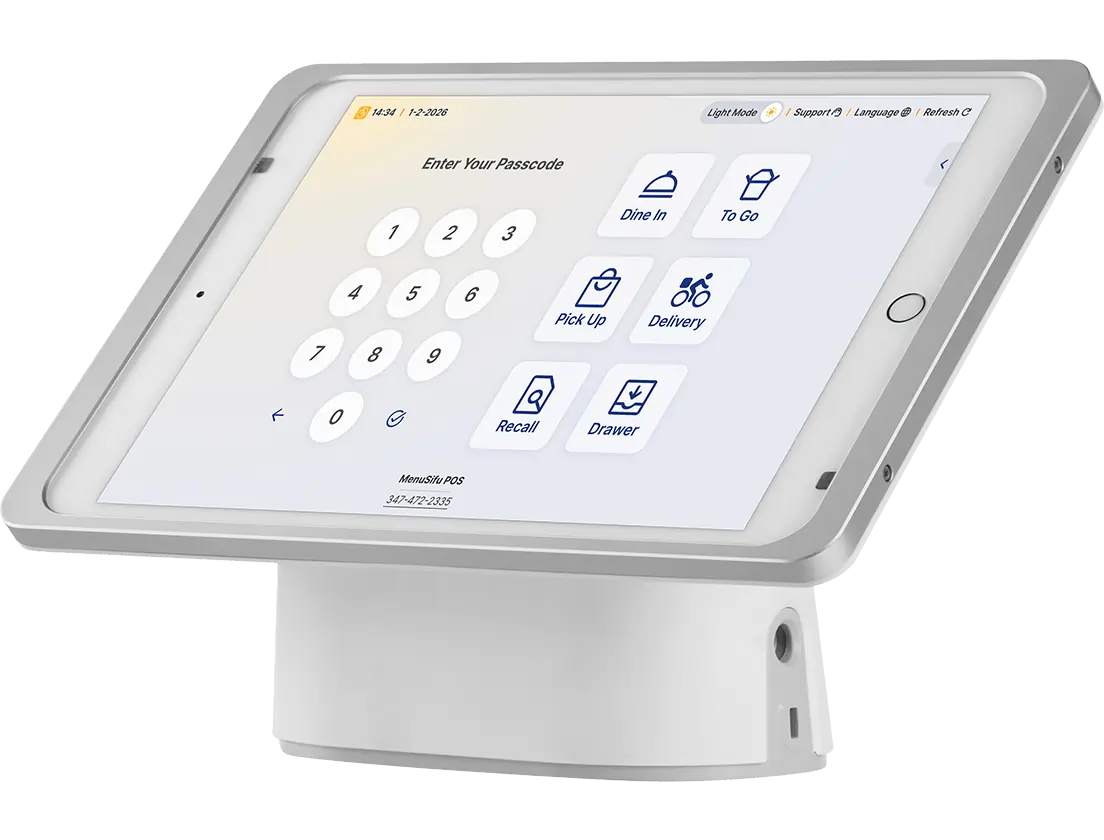
Tablet-centric POS uses tablets as primary terminals, often with optional stands, printers, and cash drawers. Many operators like the smaller footprint and simple training experience.
Best for: small to mid-size concepts that want a modern UI with flexible setups
Pros:
Trade-offs:
Good fit examples:
What to look for in a demo: speed of common orders, modifier flow, printing reliability, and how support handles hardware replacements.

Kiosks let guests place orders directly, which can reduce lines and raise average order value through smart upsell prompts. This option works best when your menu and store layout support quick guided ordering.
Best for: reducing lines and boosting average order value
Pros:
Trade-offs:
Good fit examples:
What to look for in a demo: kiosk menu flow, customization limits, payment options, loyalty linkage, and how kiosk orders route to the kitchen.
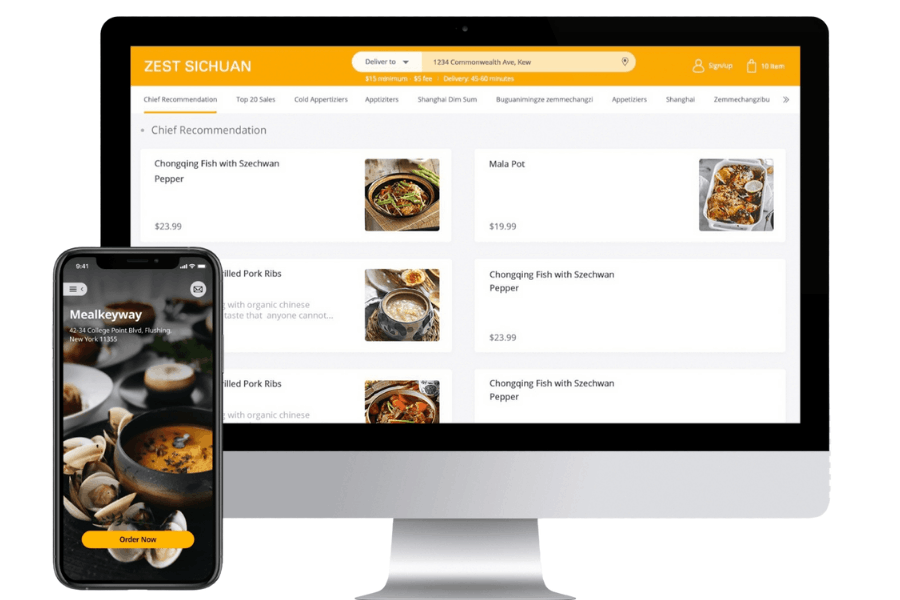
If off-premise sales drive a big share of revenue, your POS needs to handle online ordering and delivery cleanly. A delivery-first setup aims to centralize orders, reduce tablet clutter, and keep menus consistent across channels.
Best for: off-premise heavy concepts and ghost kitchens
Pros:
Trade-offs:
Good fit examples:
What to look for in a demo: menu sync across channels, throttling controls, prep timing tools, and reporting that separates on-premise from off-premise performance.
Enterprise POS supports standardized operations across many locations. It typically includes stronger permissions, consolidated reporting, and centralized control over menus, pricing, and user access.
Best for: standardized operations across many locations
Pros:
Trade-offs:
Good fit examples:
What to look for in a demo: multi-store reporting views, menu publishing workflows, role permissions, and a rollout plan that covers training and data migration.
If you want a quick way to narrow vendors, start with these types of restaurant POS systems, then shortlist two or three providers in that category and run demos based on your busiest shift. Seeing different types of restaurant POS systems in action makes it easier to spot the setup that fits your operation and rollout plans.
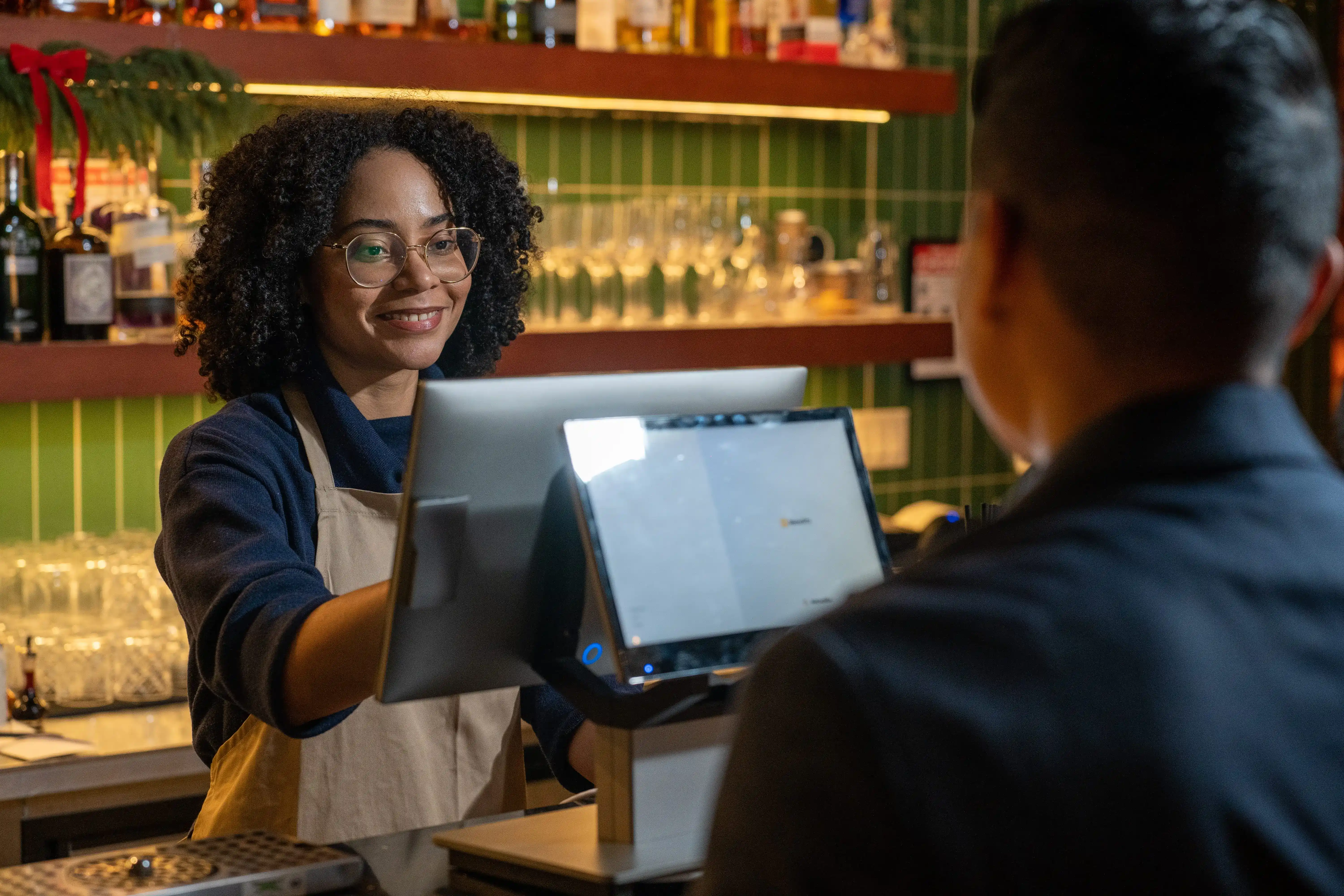
Once you’ve reviewed the different types of POS systems for restaurants, the next step is matching a POS type to how your team takes orders, runs the kitchen, and closes out shifts. Use the checkpoints below to narrow your options before you start booking demos.
Your service style sets the baseline for what the POS must handle every day.
Then factor in off-premise demand. If pickup and delivery drive a big share of sales, treat online order flow as core to the system, not an add-on. Also, check menu build tools if you run heavy modifiers, coursing, combos, or shared plates.
A POS can look great in a demo and still slow down on Friday night. Build your evaluation around peak-hour flow.
Ask vendors to walk through your real tickets: a large party, split checks, a void, a comp, and a shift close.
Internet issues happen at the worst times, so define what your team must keep doing.
Don’t accept vague answers here. Get a clear explanation of what works offline and what pauses.
Integrations shape daily operations, so pick the essentials early and verify them in the demo.
Start with the tools that drive revenue and reporting:
Prioritize integrations that pass full order details, modifiers, and taxes correctly, and that keep menus synced with minimal manual work. A long app list looks nice, but proven depth wins.
Even one store benefits from features that support future expansion and tighter control.
If a second location is on your roadmap, choose a POS type that supports rollout and standardization now.
Monthly software pricing is only part of the cost. Compare vendors using the full operating picture.
Include:
Ask for a simple, itemized quote that includes one-time fees and ongoing costs, then confirm the timeline from kickoff to launch. This keeps vendor comparisons faster and cleaner.
Narrow your options by matching the POS type to how orders flow through your front of house, kitchen, and payments. Then run vendor demos around your busiest shift, your most common tickets, and the reports you review every week. This approach helps you compare systems faster and pick a setup that supports speed, control, and scale.
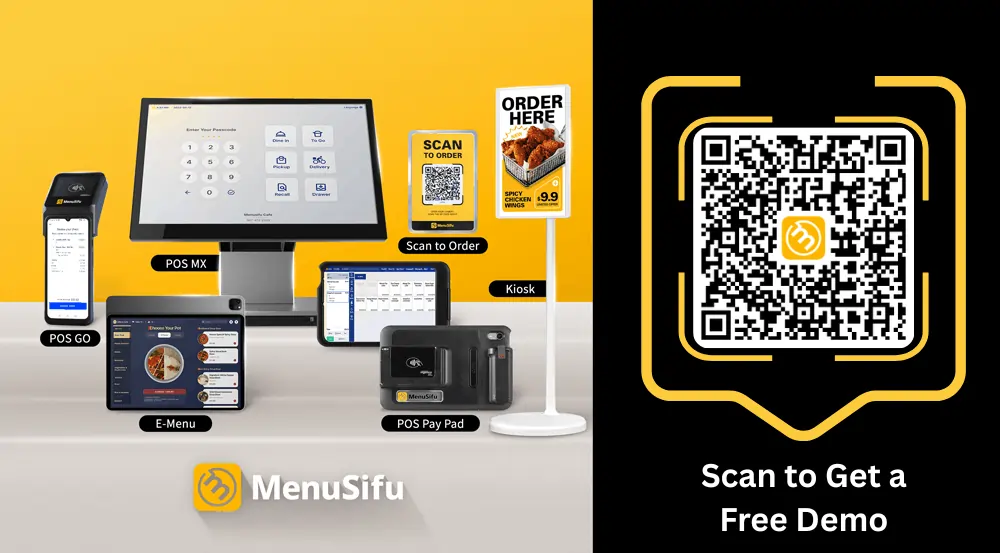
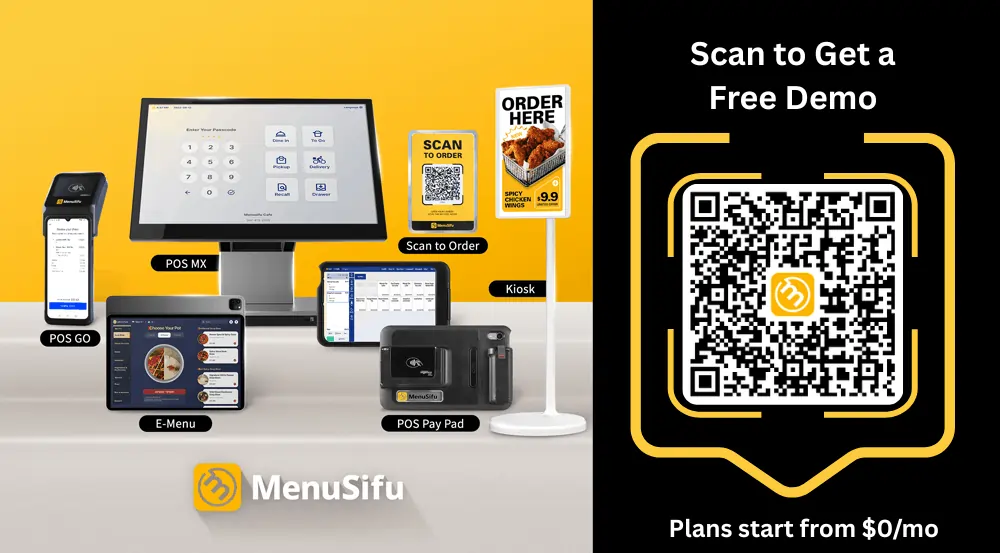
MenuSifu builds restaurant POS solutions that support counter service, table service, kiosks, and off-premise ordering, with tools for reporting, permissions, and multi-location management. Book a Free Demo with MenuSifu today, and we’ll walk through the workflows that fit your operation, from order entry to closeout.
Find quick, direct answers to the questions you’re already asking as you compare different types of restaurant POS systems. Use this section to clarify what each option offers so you can narrow your shortlist faster.
The main types of restaurant POS systems include traditional on-premise POS, cloud-based POS, hybrid POS with local backup, mobile handheld POS for tableside service, tablet-based POS, kiosk and self-order systems, online ordering and delivery-focused setups, and enterprise POS built for multi-unit groups.
Cloud-based POS usually works best for a single-location restaurant because it simplifies reporting, menu updates, and user management while keeping setup flexible. Choose a tablet-centric system for a smaller footprint and quicker staff training, or add handheld devices if you need faster table service. Prioritize reliable offline mode, strong support, and the integrations you rely on, then compare total cost across software, hardware, and processing fees.
Multi-unit operations work best with a cloud-based, enterprise restaurant POS. It centralizes menus, pricing, and user permissions, syncs sales and inventory across locations in real time, and delivers chain-level reporting from one dashboard while letting each site run its own service flow.
For more insights and updates, check out our blog for practical guides on POS selection, restaurant operations, and technology tools that support growth.
DISCLAIMER: This article provides general information to help evaluate restaurant POS options. Features, pricing, offline behavior, and integrations vary by provider and can change over time. Confirm details with each vendor and test key workflows in a live demo before making a purchase decision.
Related Articles: