February 24, 2026

How to Choose the Best Cafe POS System for Your Business

Planning a new setup or a switch? Get a clear cafe POS buyer guide: features, workflows, fees, and demo checks to select the best POS system for cafe needs.

The morning rush hits, the line starts to curl toward the door, and orders get specific fast: oat milk, half-sweet, extra shot, add a pastry, split the payment, apply points. A cafe POS has to keep up with all of it while keeping totals clean and tickets readable.

If your current setup slows the register, hides key reports, or makes online pickup harder to manage, it may be time to tighten the system behind your counter. 

This blog breaks down what a café-ready POS should handle, the features to prioritize, and what to test in a demo so your cafe can serve faster, sell smarter, and stay organized as volume and locations grow.

What is a Cafe POS System?

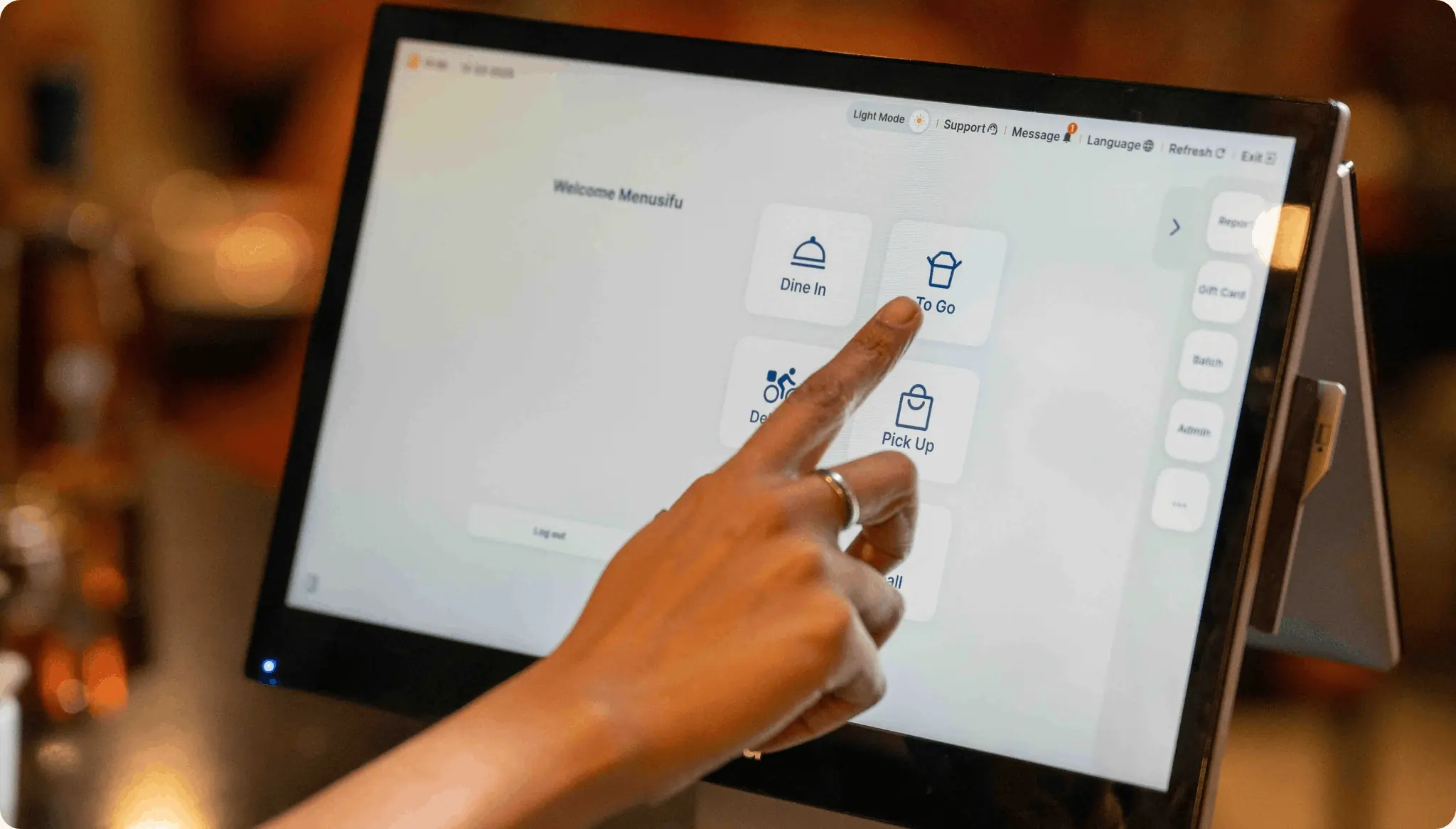
Cafe POS, or cafe point-of-sale system, refers to the tools you use to take orders, accept payments, and record sales in a café setting. It brings your register, card reader, receipts, and reporting into one setup, so every sale flows from order to payment to tracking.

A cafe POS fits counter service and quick turns. It supports drink builds with modifiers like size, milk, temperature, syrups, and add-ons, then sends clear tickets to the bar or kitchen. It also handles tips, discounts, refunds, and gift cards while keeping totals accurate.

Many cafés also use a cafe POS to manage loyalty and online ordering. You can track repeat visits, run simple rewards, and organize pickup orders so staff can keep service moving during peak hours. If you operate more than one location, a cafe point-of-sale system can also standardize menus, pricing, and reports across stores, so you can compare performance and control updates from one place.

Key Features in a Cafe POS System

A strong cafe POS system keeps your counter moving, keeps orders accurate, and gives you the controls you need after the rush. Here are the features to prioritize.

1. Fast order entry

The register screen should feel like muscle memory. Look for:

  • Quick buttons for top sellers and add-ons
  • Favorites for common builds
  • Smart layouts that match how your team takes orders
  • Repeat-order shortcuts for regulars and simple reorders

Small speed gains add up when the line hits.

2. Modifiers and combos

Café menus live on customization. Your POS should capture it cleanly.

  • Forced prompts for required choices (size, milk, sweetness, temp)
  • Item builders for drinks with multiple steps
  • Bundles like coffee plus pastry, or boba plus topping
  • Upsells that staff can tap once, not hunt for

Clear modifier flow cuts remakes and keeps tickets readable.

3. Tipping and payments

Payments should move fast and close out cleanly at the end of the day.

  • Tip prompts with flexible presets
  • Split payments and multi-tender support
  • Contactless and mobile wallet payments
  • Fast refunds with manager controls
  • Gift cards for easy repeat visits and seasonal sales

You want simple checkout for guests and clean totals for your books.

4. Loyalty built for repeat visits

Cafés win on frequency. Keep loyalty easy for staff and guests.

  • Points or punch programs that match your brand
  • Customer profiles for tracking visits and preferences
  • Simple promos like double points, item-based rewards, or birthday treats

Enrollment should take seconds at the register.

5. Menu and pricing control

Menus change. Prices shift. Items sell out. Your system should keep up.

  • Daypart pricing for morning vs afternoon items
  • Limited-time specials for seasonal drinks and baked goods
  • Out-of-stock controls that prevent staff from selling paused items

Tight menu control helps protect margins and keeps service consistent.

6. Reporting you’ll actually use

Reports should help you make decisions quickly, not create extra work.

  • Top sellers and slow movers
  • Peak hours, so you schedule smarter
  • Average ticket and add-on performance
  • Modifier trends (which extras drive revenue)

For multiple stores, you also want store comparisons and roll-up views.

7. Online ordering and pickup

Pickup can boost volume, but it needs structure.

  • Order pacing so pickup volume stays manageable
  • Prep timing controls that match your workflow
  • Clear ticket formatting for accuracy
  • Pickup status tools so staff can stage orders and hand off faster

This keeps in-store service steady even when digital orders spike.

8. Multi-location tools

Once you manage more than one shop, consistency becomes the priority.

  • Central menus and pricing pushes across locations
  • Role permissions that match each store’s leadership structure
  • Store-to-store comparisons for sales, item mix, and labor impact

These tools help you scale standards across 2 to 20 locations while keeping day-to-day control.

Cafe POS Software vs. Traditional POS

You can run a café on either a modern café POS (usually cloud-based) or a traditional POS (often locally installed). The real difference shows up when the line gets long, the menu changes, or you add pickup/delivery, kiosks, and loyalty.

Modern cafe POS software (typically cloud-based)

Best if you want speed at the counter and flexibility as you grow.

  • Faster menu changes: Update seasonal drinks, modifiers, and 86’d items quickly across devices (and across stores, if you have multiple).
  • Built for café workflows: Smooth handling for customizations (milk, size, temp, add-ons), combos, tips, and split/multi-tender payments.
  • Easy channel expansion: Online ordering, delivery integrations, loyalty, gift cards, and kiosks are usually designed to plug in without a rebuild.
  • Multi-location control (when needed): Central menus/pricing, roles/permissions, and location-level reporting help keep operations consistent.

Traditional POS (typically on-prem / locally installed)

Often a fit for simpler, stable operations that rarely change pricing or items.

  • More on-site reliance: Many functions live on the store network; remote access and changes vary by provider.
  • Slower updates: New features and upgrades may require manual installs or scheduled support.
  • Heavier to expand: Adding stations, devices, or multiple locations can take more setup and coordination.

What to test before choosing

Use your real workflow (not a generic demo):

  • Drink builds + modifiers: How many taps for your top drinks? Do bar tickets print clearly and consistently?
  • Checkout speed: Quick reorders, tips, and split payments—can staff move fast during peak hours?
  • Loyalty + promos: Fast customer lookup and simple earn/redeem at the register.
  • Inventory basics: Track key items (milk, syrups, pastries) in a way that matches how you prep and sell.
  • Outage behavior: What still works if the internet drops (orders, payments, printing) and how it syncs afterward.

Rule of thumb:

If you run high-volume counter service, customize orders heavily, change menus often, sell via pickup/delivery, or manage multiple locations, modern café POS software usually fits better. If your operation is stable and minimal, a traditional POS can be enough as long as it stays reliable during rushes.

Cafe Point of Sale Workflows to Support

Your cafe's point-of-sale system should match how orders move from the register to the bar, kitchen, and pickup area. Prioritize workflows that keep tickets clear and staff actions consistent during peak periods.

1. Rush-hour line flow

  • Keep the order screen tap-light with clear categories and top sellers upfront.
  • Route tickets to the right station so bar and kitchen stay in sync.
  • Support multiple order points (two registers or a handheld) to reduce the queue.
  • Use order numbers and pickup status displays to organize handoff and cut down on crowding.

2. Custom drinks with clean modifier logic

  • Prompt key choices in a set order: size, temperature, milk, sweetness, add-ons, notes.
  • Apply upcharges automatically for extra shots, alternative milk, syrups, and toppings.
  • Print modifiers clearly on tickets and labels so baristas make the drink once, correctly.

3. Food add-ons and bundles

  • Create bundles like coffee plus pastry or lunch combos with one-tap selection.
  • Add upsell prompts for common pairings to increase ticket size during rushes.
  • Send bakery items, hot food, and drinks to separate prep stations with the right timing.

4. Split payments, refunds, and exchanges

  • Split checks by item or amount and support multi-tender payments.
  • Keep refunds and exchanges quick, with role-based approvals and a clear audit trail.
  • Track comps, voids, and discounts by staff member for cleaner control.

5. Multi-channel orders: in-store, pickup, delivery

  • Combine in-store and online tickets in one view so the team sees total load.
  • Set pickup timing and throttle order volume to keep prep realistic during peaks.
  • Mark orders by channel and status so staff can stage, bag, and hand off accurately.

If these workflows run smoothly in your demo, your cafe point of sale systems will support daily service now and scale cleanly as you add locations.

How to Choose a POS System for Cafes

Start with your menu and rush-hour flow, then use the steps below to compare options side by side and pick the best POS system for cafe service.

1. Match the system to your service style

Start with how orders move through your shop.

  • Counter-only service: Prioritize quick order entry, easy modifiers, tip prompts, and clear pickup labeling. If you get a morning rush, look for layouts that keep your top drinks and add-ons one tap away.
  • Café seating + table numbers: Add table service tools like table numbers, split checks, and simple coursing for food. Tickets should route cleanly to the bar and kitchen so staff stop chasing updates.
  • Coffee-only menu: Focus on speed, drink builders, and loyalty. You’ll feel the difference when baristas can ring in custom drinks in seconds.
  • Coffee + full food program: Add kitchen routing, prep timing, and bundles. The POS should handle tickets that include espresso drinks, pastries, and made-to-order items without extra steps.

2. Build a real-world checklist

Skip generic feature lists. Build your checklist from your busiest hour.

  • Write down your “can’t live without” items based on daily operations: modifiers, combos, tips, loyalty, pickup orders, gift cards, refunds, staff permissions, and reports you review weekly.
  • Add “good extras” last like kiosks, advanced inventory, or extra marketing tools. If you plan to add online ordering soon, treat it as a core requirement, not an add-on.
  • For multiple locations: Include centralized menu updates, role-based permissions, and store-level reporting. Those features save time every week.

3. Test with your actual menu

A demo means nothing if it avoids your real orders. Bring your menu and drive the demo.

Ask the vendor to ring in 10–15 common orders, including:

  • A signature drink with multiple modifiers (size, milk, syrup, add-ons)
  • A drink plus pastry bundle
  • A food ticket that routes to the kitchen
  • A loyalty earn and redeem
  • A discount or promo
  • A refund and a void with manager approval
  • A split payment and a gift card sale

Watch how many taps it takes and how tickets print. Look for clean modifier formatting that bar and kitchen staff can read at a glance.

4. Validate support and onboarding

Great features won’t help if setup drags or training falls apart.

  • Setup time: Get a clear timeline for menu build, hardware setup, and payment activation.
  • Training: Ask for role-based training for cashiers, baristas, and managers. Short sessions work best when staff learns on real orders.
  • Weekend coverage: Your busiest shifts often land on weekends. Confirm support availability when you need it most.
  • Migration help: If you switch systems, confirm how they handle your item list, customer data, gift cards, and reports.

Pick the system that fits your service flow, proves itself on your menu, and shows strong onboarding. That’s how you land on the best POS system for cafe operations and set your team up for smoother shifts.

Costs and Fees to Plan For

Plan your POS budget in five buckets so you can compare quotes cleanly and avoid surprises.

Software subscription (per terminal or per location)
Vendors price software by register, device, or location. Confirm what the base plan includes, how many users you get, and how pricing changes when you add a second register, handheld, or new store.

Payment processing fees (what to ask for in a quote)
Processing drives long-term cost. Ask for the full rate structure, including:

  • Card-present and keyed-in rates
  • Per-transaction fees
  • Monthly minimums, PCI fees, and statement fees
  • Deposit schedule and payout timelines
  • Chargeback fees and dispute handling

Request an example month based on your average ticket and monthly volume.

Hardware costs (register, printer, cash drawer, KDS)
Hardware pricing varies based on your service flow. Budget for registers or tablets, payment terminals, receipt printers, cash drawers, label printers for cups or bags, and a KDS screen or kitchen printer if you route tickets to multiple stations. Add a reliable router and backup power for network stability.

Add-ons (online ordering, loyalty, payroll, inventory)
Some systems bundle these tools, others charge per module. Confirm pricing for online ordering, loyalty, gift cards, delivery integrations, payroll or time tracking, and inventory. Ask if fees apply per location, per device, or per order.

Hidden costs checklist (implementation, contracts, cancellation)
Before you sign, confirm:

  • Set up and onboarding fees
  • Menu build and data migration costs
  • Training sessions and go-live support
  • Contract length and auto-renewal terms
  • Equipment replacement and warranty coverage
  • Cancellation fees, early termination terms, and return policies

A clear cost breakdown helps you forecast accurately and scale your setup as sales and locations grow.

Integrations Cafes Use Most

Integrations cut manual work, speed up closeouts, and keep numbers consistent across channels. Focus on tools that support daily ops and growth.

  1. Accounting (QuickBooks/Xero)
    • Sync sales, taxes, tips, and payouts automatically.
    • Map revenue streams (in-store, pickup, delivery) into clean categories.
    • Reduce end-of-day reconciliation time.
  2. Payroll and time tracking
    • Export hours, breaks, and tips for payroll runs.
    • Track labor cost against sales by daypart.
    • Keep permissions and audit logs for edits.
  3. Online ordering and delivery
    • Push orders into the same queue as in-store tickets.
    • Preserve modifiers and special instructions accurately.
    • Set pickup timing and manage order volume during peaks.
  4. Loyalty and marketing (if not built in)
    • Connect customer profiles, points, and rewards.
    • Send targeted offers based on visit patterns and spend.
    • Track redemption and promo results in reports.
  5. Inventory and purchasing (basic vs advanced)
    • Basic: deduct key items, flag low stock, pause sold-out items.
    • Advanced: track recipes, vendor orders, batch counts, and multi-location stock.
    • Spot shrink and align purchasing with demand trends.

Setup Tips for a Smooth Launch

A clean setup before go-live saves time during service, so focus on menu structure, permissions, closeout settings, and a short practice run before your first peak shift.

Menu build best practices (naming, modifier logic, button layout)

  • Name items the way guests order. Use short, clear labels like “Latte 12oz” and “Iced Matcha 16oz.” Keep abbreviations consistent across the menu.
  • Group modifiers in a set order. Run prompts in the same sequence every time: size, hot/iced, milk, sweetness, add-ons, notes. Add required prompts for key choices so staff captures them every sale.
  • Set prices at the modifier level. Apply upcharges to extra shots, alternative milks, toppings, and size changes so totals calculate automatically.
  • Design buttons for speed. Put top sellers on the first screen. Place high-volume modifiers near the items that use them. Keep similar drinks in the same layout so staff builds muscle memory.

Staff roles and permissions

  • Create role-based access. Limit voids, refunds, and large discounts to managers. Allow staff to comp items only within a small limit if needed.
  • Use a clean override process. Require manager PINs for high-impact actions and log every override for review.
  • Standardize across locations. Keep the same roles, permissions, and button layout at every store to reduce training time and keep reporting consistent.

Receipts, taxes, tips, and end-of-day close

  • Configure taxes correctly. Apply the right tax rules for food versus beverages and for dine-in versus takeout if your region requires it.
  • Set tip prompts and tip-out rules. Choose default tip options, decide when to show prompts, and confirm tip reporting by shift and by staff member.
  • Lock in closeout steps. Define who runs the Z report, who counts cash, how you reconcile card payouts, and how you handle paid-out and cash drops. Write the steps in a short checklist and keep it at the register.

Soft launch plan (quiet day + rush-hour trial)

  • Start on a quiet day. Run live orders with a smaller menu and your core modifiers. Fix button placement, prompts, and ticket routing the same day.
  • Simulate peak orders before the first rush. Ring in 20 to 30 common orders in a row, include customizations, add a refund, and redeem loyalty once.
  • Trial a real rush window. Schedule a busy morning or lunch block with extra floor coverage. Track speed, errors, and pickup flow, then adjust layouts and modifiers immediately after service.

Common Mistakes to Avoid

Choosing based on price alone
Compare total cost, not the lowest monthly fee. Factor in payment processing, add-ons (online ordering, loyalty), hardware, implementation, and support. A cheap plan can cost more through slow service, missing features, or weak reporting.

Ignoring modifier complexity during demos
Test your real drink builds and topping-heavy items in the demo. Ring in size, milk, temperature, sweetness levels, syrups, extra shots, and upcharges. If the flow takes too many taps or prints unclear tickets, errors will show up during rush hours.

No plan for outages and offline sales
Confirm what the system supports during internet issues: taking payments, storing orders, printing receipts, and syncing later. Also check your backup plan for hotspots, spare terminals, and basic troubleshooting steps.

Underestimating training and menu build time
Build the menu with speed in mind, then train staff on the exact screens they will use. Set up roles and permissions early, and run short practice sessions with your top 10 to 15 orders. Schedule a soft launch so the team can practice before peak traffic.

Inconsistent pricing and menus across locations
Standardize item names, modifiers, bundles, and pricing rules across stores. Use central controls to push menu updates, lock key settings, and track changes. Consistency protects margins and keeps guest expectations stable across locations.

Quick Checklist for Your Cafe POS Demo

Bring this to every demo and check each box.

1

Speed test

2

Modifier test

3

Payment test

4

Loyalty test

5

Online order test

6

Reporting test

7

Multi-store test (if applicable)

Next Steps for a Stronger Cafe POS Setup

A café-focused POS supports fast counter service, accurate customizations, tipping, loyalty, and clean reporting. Start by testing your top orders in a live demo, then confirm your payment terms, support coverage, and rollout plan.

If you want a platform designed for cafés and bakery concepts, MenuSifu offers a Bakery & Cafe POS System built to keep service steady during peak periods and to support both in-store and online ordering. You can set up coffee and pastry bundles for faster tickets, give guests an order-ahead option to skip the line, and keep pickup organized with clear status displays.

MenuSifu also supports smarter bakery operations with inventory syncing, batch tracking, quick item pausing or restocking, and time-based discounts for late-day items. Loyalty tools let guests earn and redeem points, support birthday rewards, and include gift cards with bonus point promotions.

Explore Now if you want a quick overview, or Book a Demo for a guided walk-through based on your menu. Book a Free Demo with us today!

Frequently Asked Questions About Cafe Point of Sale Systems

Below are quick answers to the most common cafe POS questions, so you can compare options and move to the next step faster.

What is a Cafe POS System?

A cafe POS system is a point-of-sale setup built for café service. It lets you take orders fast, handle modifiers like size and milk options, accept payments and tips, manage loyalty, route tickets to the bar or kitchen, and track sales and inventory in one place.

What is the Best POS System for a Cafe?

The best POS system for a cafe fits your service style and handles café essentials: fast order entry, strong modifiers, tipping, loyalty, online ordering, and clear reporting. MenuSifu checks those boxes with café-ready features like preset drink and pastry combos, order-ahead for pickup, pickup status displays, inventory tools for batch tracking and item pausing, and flexible loyalty with points, rewards, and gift cards. Book a free demo to see how it runs your real menu and rush-hour orders.

How Much Money Does a Small Café Owner Make?

Small café owners' income varies widely by location, rent, labor costs, and sales volume. In the U.S., many coffee shop owners earn around $60,000 to $160,000 per year, while some industry surveys report an average closer to about $48,000. In Canada, salary estimates often center around about $76,000 CAD, with a wide range reported.

For more insights and updates, check out our blog section for new guides on POS features, café operations, and menu strategies.

Related Articles: