September 11, 2026
Compare kitchen display system price ranges, software fees, hardware costs, setup expenses, and vendor options to plan the right KDS budget for your restaurant.
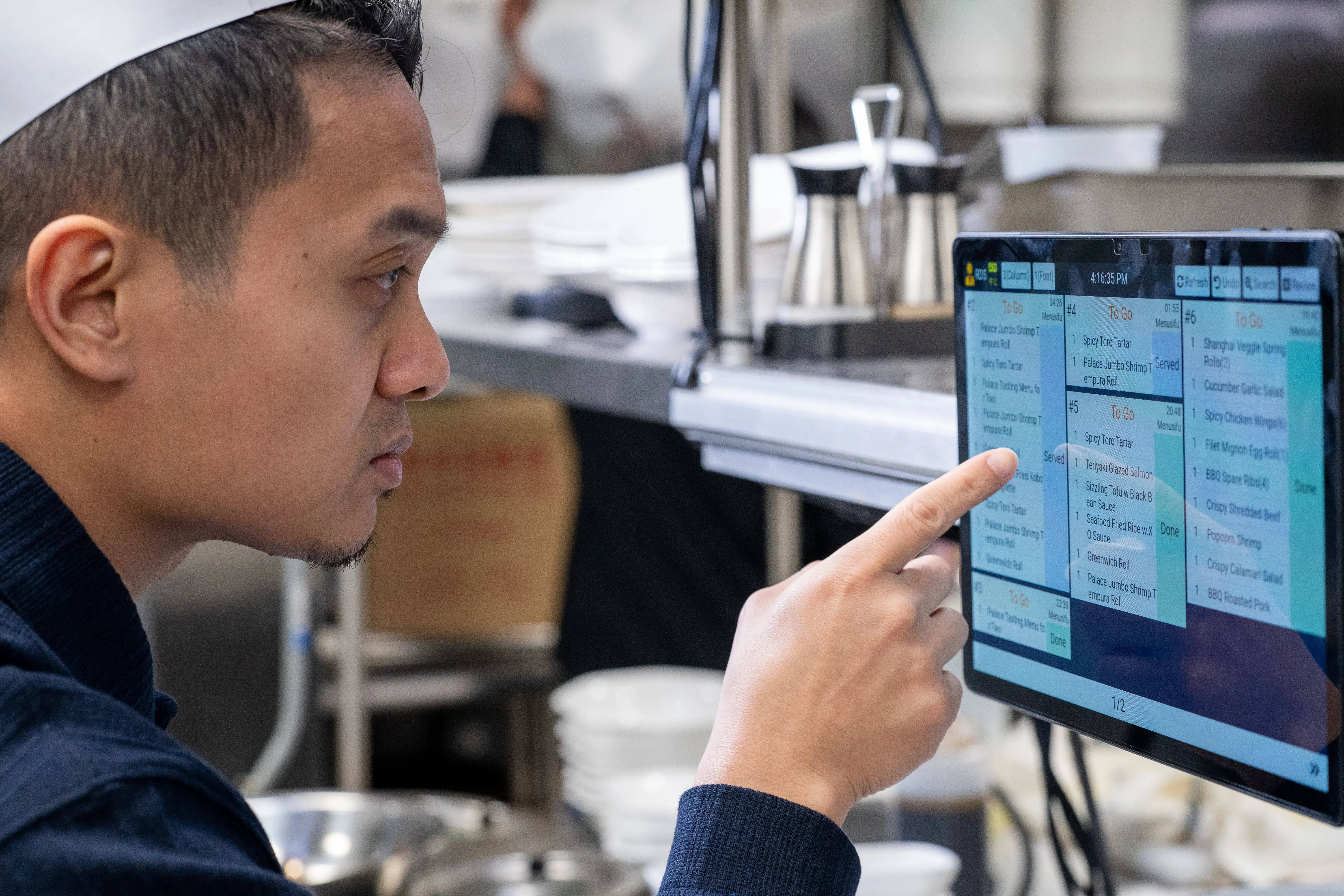
The kitchen display system price can change quickly once you add screens, software, setup, POS integration, and support. A one-screen setup may fit a smaller kitchen, while a high-volume or multi-location operation may need stronger hardware and station-based routing.
So, how much should your restaurant budget before choosing a POS or KDS vendor? The answer depends on how your kitchen operates, how many stations need order visibility, and what level of support your team expects after installation.
This guide breaks down average KDS pricing, hardware ranges, software fees, one-time costs, cost by restaurant type, vendor comparisons, and the factors that shape your final investment.
The average kitchen display system price usually depends on your screen count, hardware type, software plan, and setup needs. A basic tablet-based KDS can start around $150 to $600 per station, while a commercial touchscreen display often ranges from $400 to $1,500 per station. If your kitchen needs rugged hardware built for heat, grease, and heavy use, each station can cost $900 to $2,000 or more.
Your total cost can also grow when you add multiple kitchen stations. A small restaurant may only need one or two screens for prep and expo. A high-volume restaurant or multi-location operation may need several displays for grill, fry, prep, pickup, takeout, and delivery orders.
Software fees also affect your monthly budget. Many KDS providers charge by screen, device, or location, with common monthly fees ranging from $20 to $100 or more. Installation, menu setup, POS connection, staff training, mounts, and network work can add to the first-year cost.
Here is a quick pricing view.
A lower upfront price can work for a simple kitchen, but your final budget should include hardware, software, installation, and support. After you set a rough price range, review the main cost drivers that can raise or lower your KDS investment.

KDS pricing changes as your kitchen setup gets more specific. A small operation may need one screen, while a high-volume restaurant may need several stations, stronger hardware, and more detailed POS setup. Review these areas before you compare quotes.
Each screen adds to your total KDS cost. A compact kitchen may only need one display for all orders. A larger kitchen may need separate screens for prep, grill, fry, expo, pickup, takeout, or multiple kitchen lines.
More screens can also mean more software fees if the provider charges per device or per screen. Before you request pricing, map out each station that needs order visibility.
Your hardware choice has a direct effect on cost. Tablets usually cost less upfront and work well for smaller kitchens. Commercial touchscreens cost more, but they often offer better visibility, durability, and daily performance.
Rugged kitchen displays cost even more because they can handle heat, grease, moisture, and heavy use. You may also need bump bars, wall mounts, stands, protective cases, cables, or backup devices. These add-ons can raise the final price, so include them in your budget from the start.
Most KDS providers charge a monthly software fee. Some charge per device, some charge per screen, and others charge per location. Some POS providers also include KDS access inside a larger restaurant POS package.
When you compare plans, look at what the fee includes. Basic plans may cover digital tickets and order timers. Higher plans may include advanced routing, reporting, order status updates, multi-location tools, and stronger support.
A KDS that connects with your POS can improve order flow between front of house and back of house. Orders can move from the POS to the right kitchen station, while updates, changes, and cancellations appear in real time.
Integrated systems may also support better reporting and kitchen communication. If your POS and KDS come from different vendors, check compatibility, setup fees, and support coverage before you commit.
Setup can affect your first-year KDS cost. Your provider may need to configure devices, connect the KDS to your POS, map menu items, assign stations, set routing rules, and test the system before launch.
Training also helps your team use the system correctly from day one. Front-of-house staff need to track order progress, while kitchen staff need to manage tickets, updates, and completed items. Good onboarding can reduce errors during service.
Support plays a big role in long-term value. Look at software updates, hardware warranty, replacement options, and access to technical help.
Choose a provider that can help your team keep orders moving, especially during busy service hours.
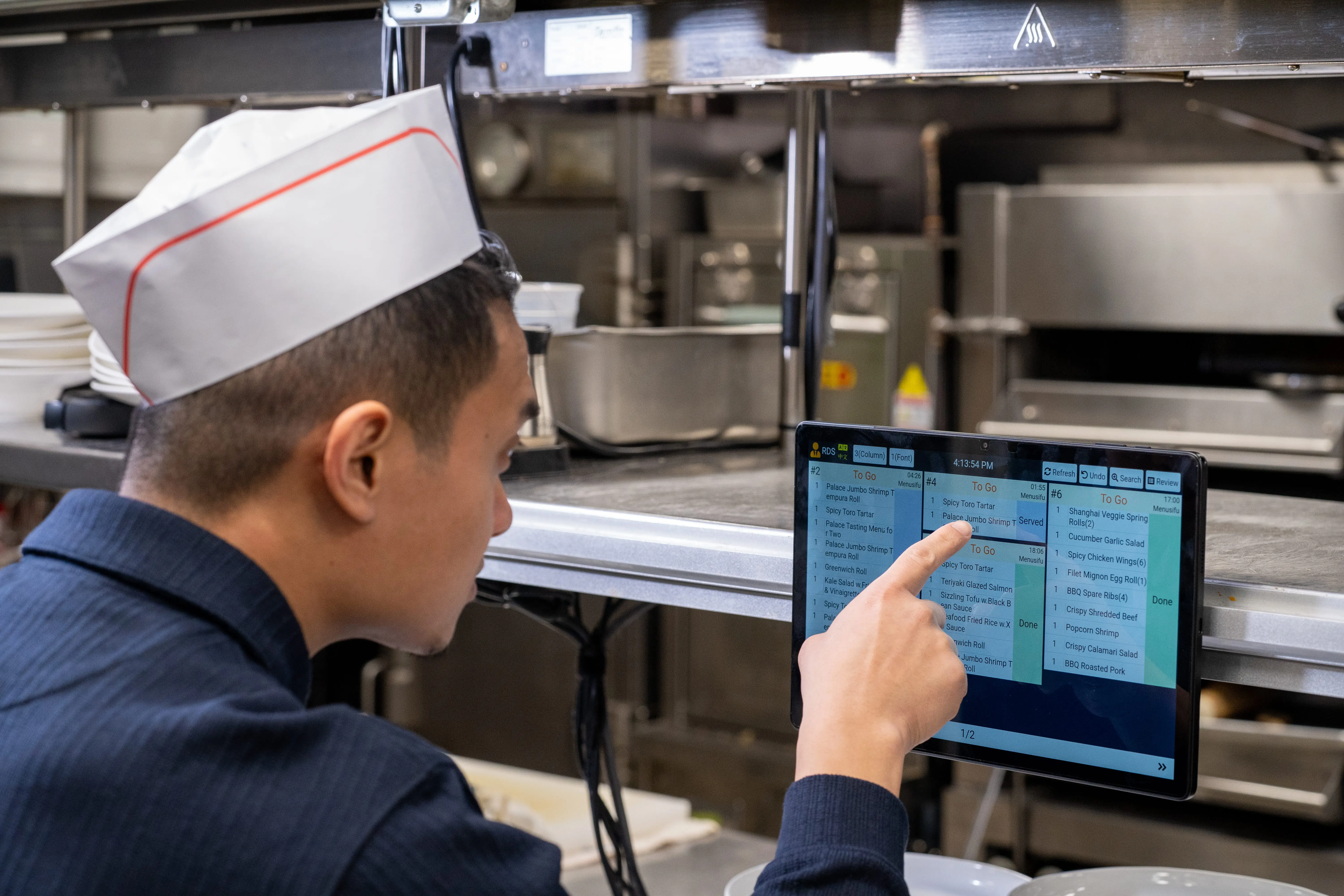
Hardware can take a big share of your KDS budget, so start here before comparing monthly fees. These KDS price ranges by hardware type can help you estimate what your restaurant may spend based on screen type, kitchen size, and daily order volume.
A tablet-based setup can work well for a smaller kitchen with a simple order flow. If your kitchen handles higher ticket volume, heat, grease, or multiple prep stations, a commercial or rugged display may give your team better durability and visibility.
Prices vary based on the provider, hardware quality, software plan, installation needs, and number of screens required. Once you know your hardware range, you can compare recurring software fees with a clearer budget.
After hardware, software usually becomes the cost you pay every month. Most KDS providers charge by screen, device, location, or POS package, so the price can change as your kitchen setup grows.
Here are the recurring software fees to review.
The lowest monthly price may look appealing, but it may leave out tools your kitchen needs. Compare what each plan includes, such as POS integration, software updates, support, order routing, reporting, and multi-location controls.
Before you choose a plan, look at the full monthly cost based on your actual number of screens and locations. That gives you a clearer view of what you will pay after setup.
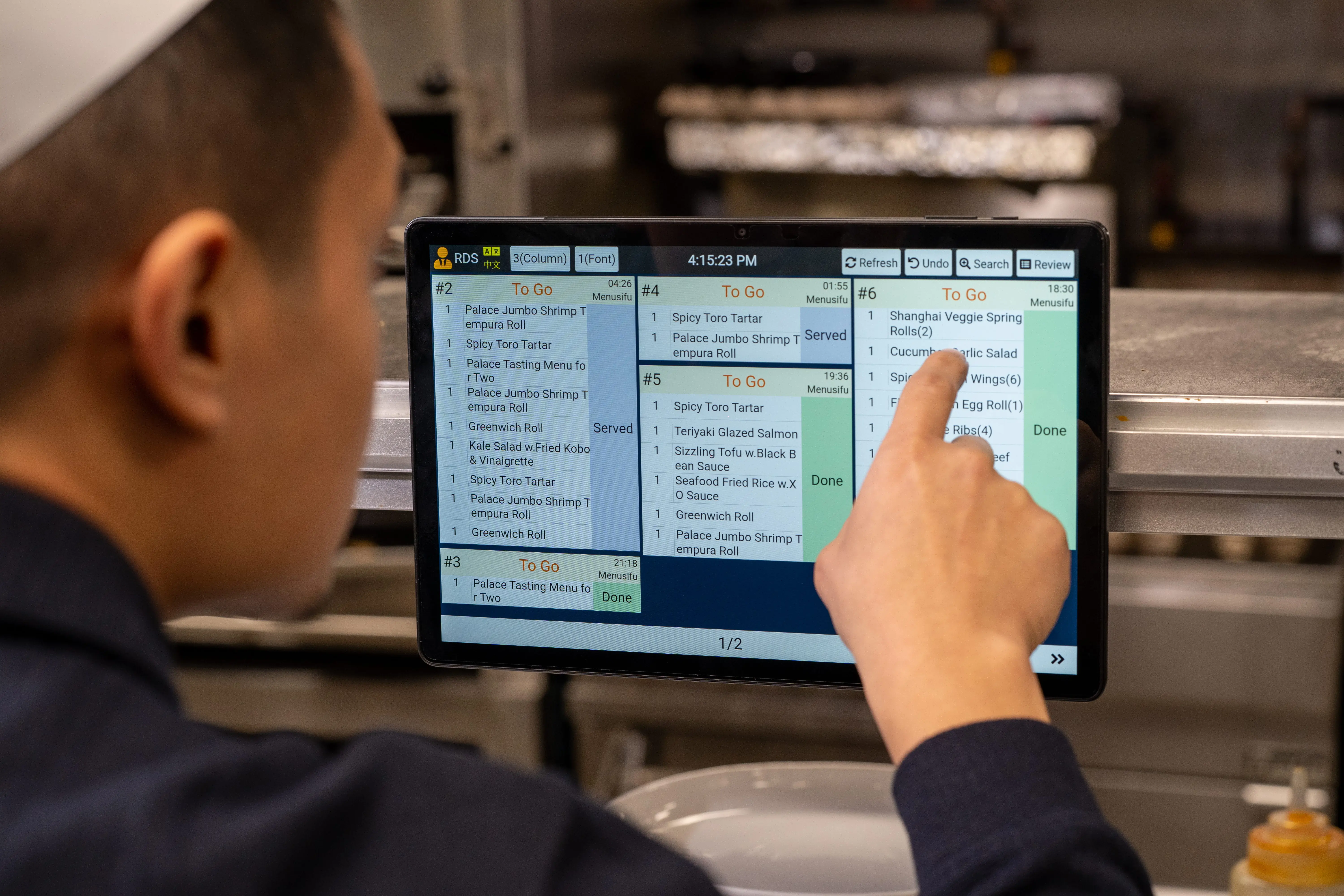
Your monthly KDS fee is only one part of the budget. Upfront costs can raise your first-year spend, so list each item before you compare vendor quotes.
Before you choose a KDS provider, ask for a clear quote that separates hardware, setup, software, and support costs. This helps you compare the full investment instead of focusing only on the monthly fee.
Your KDS budget changes based on kitchen size, order volume, and the number of stations that need order visibility. A small cafe may only need one screen, while a larger restaurant may need several displays for prep, expo, takeout, and pickup.
Use this as a starting point when comparing KDS quotes. Count the stations that need their own screen, then review the cost of hardware, monthly software, setup, and support for each location. For multi-location restaurants, also check how each vendor handles rollouts, shared settings, and ongoing service across stores.
When you compare KDS vendors, look past the monthly fee. A low software price can rise once you add screens, mounts, POS plan requirements, setup, support, and future hardware needs.
A better comparison includes price range, hardware quality, POS compatibility, kitchen workflow tools, support, scalability, and long-term reliability. The right KDS should fit how your kitchen operates during real service, from order routing to station updates and staff communication.
MenuSifu stands out if your kitchen needs a connected POS and KDS setup instead of a separate screen tool. Its KDS supports order and item views, grouped dishes for batch prep, color-based wait alerts, station-level progress updates, barcode slips for served items, and language options for English, Chinese, and Spanish. These features help your team see urgent orders, track prep status, and keep front and back of house aligned.
For a simple one-screen setup, a per-device or per-screen KDS may fit your budget. For a restaurant that needs connected POS, kitchen routing, multilingual support, and multi-location consistency, MenuSifu may offer stronger long-term value.

A KDS should fit your kitchen layout, service volume, POS setup, and growth plans. Before you compare pricing, use these points to see which system fits your operation best.
1. Map out every kitchen station that needs a screen
Start with your actual workflow. Count the stations that need order visibility, such as prep, grill, fry, beverage, expo, takeout, and pickup.
A small restaurant may need one or two screens. A high-volume restaurant may need separate screens for each station so every team sees the right orders at the right time.
2. Choose hardware that fits your kitchen conditions
Tablet-based KDS options can work well for smaller setups with lighter order volume. Commercial-grade screens can serve better in kitchens with heat, grease, moisture, and heavy daily use.
Look at screen size, mounting options, touch controls, bump bar support, and durability before you choose the lowest-priced device.
3. Check how the KDS connects with your POS
Your KDS should receive orders from your POS quickly and accurately. It should also reflect order changes, cancellations, rush items, and prep updates across the right screens.
If the KDS and POS come from different providers, ask how setup, support, and future updates will work.
4. Review peak-hour performance
A KDS should handle your busiest service periods with clear order routing and reliable screen updates.
Look for features such as item grouping, station routing, order timers, color alerts, and synced progress across screens. These tools help your kitchen prioritize orders during heavy traffic.
5. Confirm what setup and training include
Ask what happens after purchase. A good provider should help configure menus, assign stations, set routing rules, test devices, and train your team.
Clear onboarding helps your staff adapt faster and reduces errors during launch.
6. Look at post-installation support
Support can affect the real value of your KDS. Review support hours, response times, hardware warranty, software updates, and replacement options.
Strong support becomes especially important when your kitchen depends on the system during service.
7. Plan for more locations
If you operate several stores or plan to expand, choose a KDS that can scale across locations. You may need consistent hardware, shared settings, centralized reporting, and repeatable rollout support.
A system that works for one location should also support your next location with less rework.
8. Compare the full cost, not the starting price
Review hardware, software, installation, training, support, warranty, and add-ons together. A low monthly fee may still lead to a higher total cost if key features or services cost extra.
Ask each vendor for a clear pricing breakdown so you can compare the full investment before you commit.
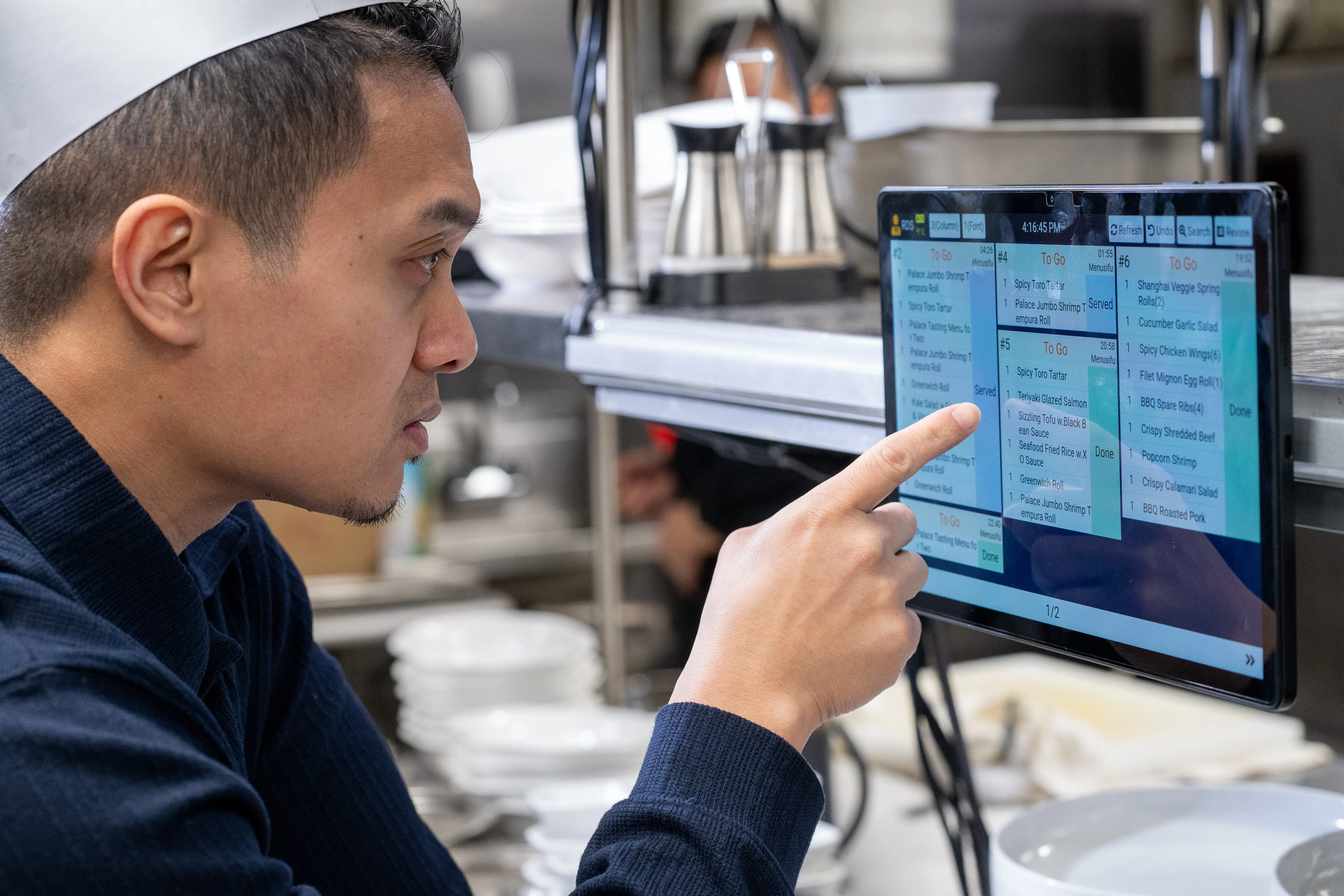
A KDS can earn its place when it helps your team move orders faster, keep tickets visible, and keep every station aligned during service. If your kitchen still relies on printed tickets, the real cost may show up in missed items, delayed dishes, and staff checking back and forth for updates.
With a KDS, orders flow from the POS to the right kitchen screen, so cooks see what to prepare and when to prepare it. Front-of-house staff can track dish progress, send rush alerts, and see updates in real time, which helps both teams stay aligned.
It also helps reduce missed or incorrect orders. Digital tickets stay on screen, color alerts show delayed items, and each station can focus on assigned work. During peak hours, your team gets a clearer view of what is cooking, what is ready, and what needs attention next.
For multi-location restaurants, a KDS can support more consistent workflows across stores. Your teams can follow the same routing, prep, and tracking process, which makes training easier and service more predictable.
If the system helps your kitchen serve faster, reduce errors, and improve order tracking, the cost becomes easier to justify. The best value comes from a KDS that fits your kitchen layout, connects with your POS, and supports the way your team works every day.
The right KDS budget should reflect how your kitchen actually works. Screen count, hardware quality, software fees, POS connection, installation, training, and support all shape the final cost. A simple one-screen setup may fit a smaller kitchen, while a larger operation may need station-based routing, stronger displays, and tools that keep prep, expo, takeout, and service teams aligned.
MenuSifu helps restaurants build a connected POS and Kitchen Display System setup based on their workflow. Its KDS can keep orders moving offline, route items by station, group identical dishes for batch prep, show wait-time alerts by color, sync progress across screens, and support English, Chinese, and Spanish for multilingual teams. It can also help servers track dish progress and mark served items with barcode scanning.
To get a clearer budget for your setup, contact MenuSifu for a custom KDS price estimate based on your kitchen layout, screen needs, and POS requirements.
Need a quick pricing recap before you compare vendors? These FAQs highlight the main cost points to review before you choose a KDS provider.
A KDS typically costs around $20 to $100 or more per screen per month for software, plus hardware, setup, and POS integration costs. Hardware can range from about $150 to $2,000+ per station, while a full restaurant setup may cost $1,000 to $10,000+, depending on the number of screens, features, order volume, and integration needs.
KDS software usually costs $20 to $100 or more per month, depending on the provider, number of screens, and included features. Some vendors charge per device or per screen, while others bundle KDS software with a restaurant POS plan.
The biggest price drivers are the number of kitchen screens, hardware type, software plan, POS integration, installation, training, and ongoing support. A single tablet setup usually costs less than a multi-station system with commercial displays, advanced routing, and multi-location management.
Yes. A tablet-based KDS usually costs less upfront than a commercial screen, making it a practical option for smaller restaurants or simpler kitchen setups. Commercial screens cost more, but they often provide better durability, visibility, and performance in hot, high-volume kitchens.
Avoid choosing a KDS by price alone. A low-cost system may cost more over time if it lacks durable hardware, reliable order routing, POS integration, staff training, or responsive support. Choose the KDS that fits your kitchen workflow, reduces ticket errors, and offers the best long-term value.
For more insights on restaurant POS, KDS solutions, and kitchen operations, visit our blog section.