September 3, 2026

Best Kitchen Display System for Fast Food: What to Look For

Looking for the best kitchen display system for fast food? Learn which KDS features help replace paper tickets, organize orders, and connect FOH and BOH teams.

Paper tickets and aging kitchen printers can become a problem when orders pile up, updates get missed, or a printer jams during a rush. If your team spends too much time sorting tickets or checking order changes, it may be time to consider a digital kitchen workflow.

Finding the best kitchen display system for fast food starts with knowing which features help keep orders visible, organized, and moving across each prep station. This guide explains what to look for in a fast food kitchen display system, how to choose the right setup, and how MenuSifu KDS can help replace paper-based order management.

Why Fast-Food Restaurants Are Moving Beyond Paper Tickets

Paper tickets become harder to manage when orders pile up during busy periods. Kitchen staff may need to sort through printed slips, track ticket order manually, and decide which dishes need attention first. As the queue grows, keeping every order organized becomes more difficult.

Kitchen conditions also put paper tickets at risk. Grease, water, printer jams, faded text, or printing errors can damage or delay an order ticket. A lost or unreadable slip may force staff to confirm the order again, adding extra steps during service.

Order changes create another challenge. Cancellations, modifications, and rush requests often rely on verbal updates between front-of-house and back-of-house staff after the original ticket has been printed. If the kitchen misses an update, employees may prepare the wrong item or continue working on a canceled order.

Traditional printers also give managers and FOH staff limited visibility into kitchen progress. They show individual tickets but offer little insight into what staff is preparing, which orders are waiting, and what is ready. A digital kitchen display system addresses these limitations by keeping active orders and updates visible on dedicated screens.

How a Fast Food Kitchen Display System Improves Kitchen Workflow

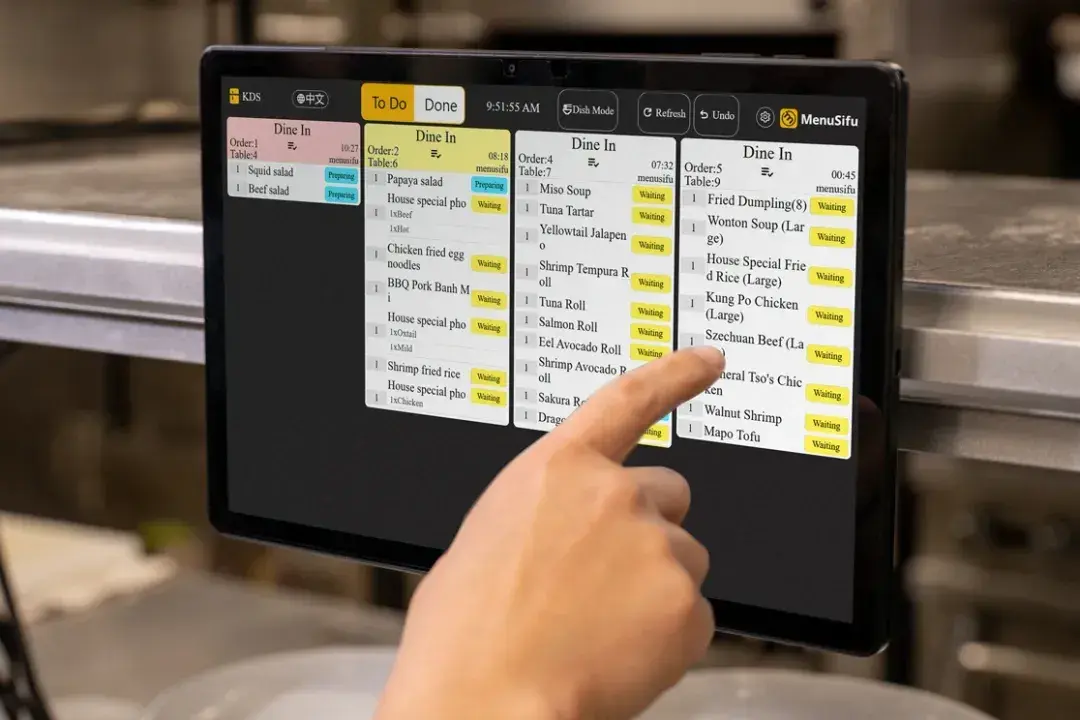
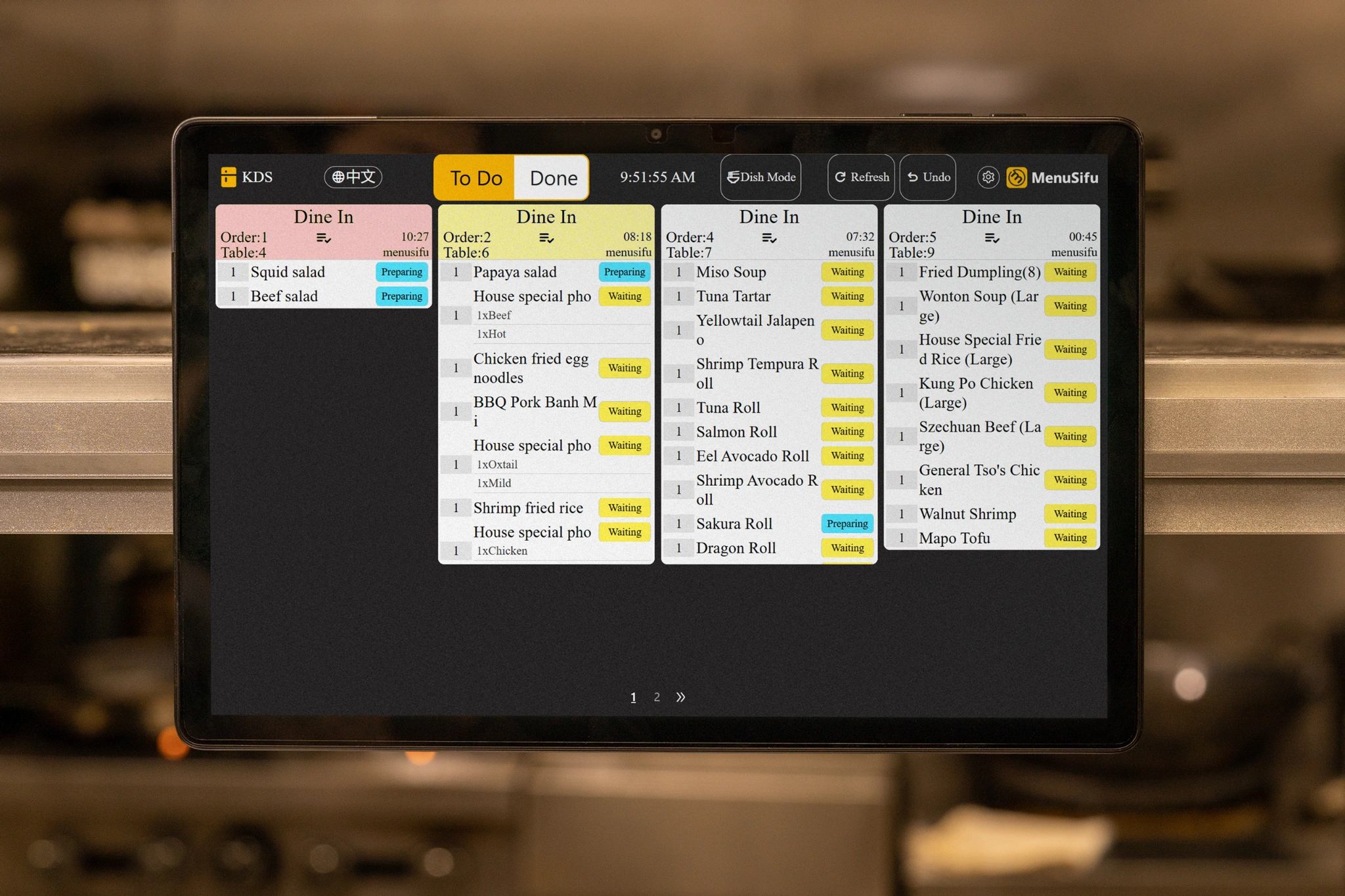
A fast food kitchen display system replaces the paper rail with a live order queue. As orders reach the kitchen, cooks can read items, modifiers, quantities, and preparation details directly from a screen. That gives the team one current source of order information instead of a mix of printed slips and verbal updates.

The difference becomes especially clear during a rush. A KDS can sort orders by status or waiting time and use visual cues to draw attention to older or urgent tickets. Cooks can see what needs action next without scanning a crowded rail or comparing timestamps by hand.

Changes also reach the kitchen faster. When FOH updates a supported order, the display can reflect cancellations, modifications, or rush requests in real time. The kitchen works from the latest order details instead of relying on a second printout or someone calling across the counter.

A KDS becomes even more useful when several stations prepare the same order. The grill can see its items, the fryer can see its own queue, and the packing station can follow progress across both. Each area works from the part of the order it needs while the system keeps the full ticket connected.

Features to Look for in the Best Kitchen Display System for Fast Food

Once you decide to replace paper tickets or an older kitchen setup, focus on how the KDS handles orders during actual service. The strongest systems help cooks see what to prepare, route items to the correct station, track waiting orders, and keep FOH and BOH updated from the same order information.

1. Flexible Order and Item Views

Your kitchen may need to see a complete ticket at one station and individual dishes at another. A KDS should let staff switch between full-order and item-level views based on the work happening on each screen.

Item view also supports batch preparation. If several customers order the same burger, side, or drink, cooks can see the combined quantity and prepare those items together instead of opening each ticket separately.

2. Station-Based Order Routing

A grill cook doesn't need every beverage order, and the beverage station doesn't need every fryer item. The KDS should send each menu item to the station responsible for preparing it.

For kitchens with several screens, each display should show the work assigned to that area while keeping progress synchronized. This gives the grill, fryer, prep, beverage, and packing stations a focused queue while keeping the full order connected.

3. Order Prioritization and Wait-Time Tracking

During a rush, staff needs to see which tickets have been waiting longest. Look for a KDS that tracks order age and uses clear visual indicators to highlight orders that need attention.

This helps cooks respond to delayed or urgent tickets before they get buried in the queue. Managers can also see where orders are starting to back up instead of sorting through printed slips to estimate waiting time.

4. Real-Time Front- and Back-of-House Communication

Order information often changes after the customer places it. An item may be canceled, modified, or marked as urgent.

A connected KDS should display those updates directly in the kitchen. FOH staff should also be able to follow preparation progress so they know when an order is still being prepared or ready for handoff. This reduces repeated calls into the kitchen and limits reliance on replacement tickets.

5. Dine-In and Takeout Order Management

Dine-in, pickup, and takeout orders may share the same kitchen, but staff still need to know where each completed order should go.

Look for a KDS that clearly labels or separates order types on screen. A visible distinction helps the kitchen organize preparation and helps the handoff team send completed orders to the correct counter, pickup area, or service point.

6. Offline Reliability

A temporary network problem should not leave cooks with blank screens during service. Check how the KDS handles active orders when connectivity becomes unstable.

Offline functionality can help staff continue working from available order information while the connection recovers. This is especially important when the kitchen depends on digital screens as its primary ticket system.

7. Customizable Kitchen Displays

Kitchen screens need to stay readable from the position where staff actually work. A cook standing several feet from a display may need larger text than an employee working directly beside the screen.

Look for controls that let you adjust font size, rows, columns, and screen layout. These settings help you organize information according to viewing distance, available screen space, and the number of orders each station handles.

8. Multilingual Support

If employees use different preferred languages, a multilingual KDS can make order information and system controls easier to follow.

Check which languages the platform supports and how staff select them. Giving employees access to a supported language they read comfortably can help them learn the system and follow the same kitchen workflow during service.

Once you identify the features you need, the next step is to compare them against your peak order volume, kitchen stations, POS setup, and working conditions.

Kitchen staff assembling pizzas with real-time orders shown on a KDS screen to streamline workflow and speed service.

Choosing a KDS for a Fast-Food Operation

Once you know which KDS features support an efficient kitchen, evaluate how the system will perform during daily service. Focus on order volume, station setup, POS connectivity, and hardware reliability before making a decision.

Consider Your Peak Order Volume

Evaluate the system based on your busiest service periods, when tickets arrive quickly and several orders may appear at once. The display should keep active orders organized and easy to scan as the queue grows.

If you operate multiple locations, also consider how consistently the KDS can support the same order workflow across each store. Clear screens and consistent controls can make staff training and daily operations easier to manage.

Map the System to Your Kitchen Stations

Review how food moves through your kitchen from order entry to final handoff. Identify which items go to the grill, fryer, prep area, beverage station, packing counter, or other work areas.

Then decide what each station needs to see. One screen may work well in a compact kitchen, while larger operations may benefit from several displays that separate items by station or category. Each employee should see relevant tasks while order progress stays connected across the kitchen.

Review Your Current POS and Order Channels

Your KDS should connect closely with your restaurant POS so order details move directly from FOH to BOH. This reduces duplicate entry and helps kitchen staff work from current order information.

Review how dine-in, takeout, pickup, kiosk, and other supported orders enter the kitchen. A connected setup should organize these orders clearly and send the correct items to the appropriate preparation areas.

Prioritize Reliability in a Real Kitchen Environment

Kitchen hardware faces heat, grease, moisture, splashes, and continuous daily use. Look for equipment designed to handle these conditions while keeping screens readable and responsive throughout service.

Also review how the system operates during network interruptions. Offline support can help your kitchen continue processing active orders when connectivity becomes unstable.

Once you have evaluated these operational requirements, the next step is planning how a digital kitchen workflow would work across your screens, stations, and teams.

From Paper Tickets to a Digital Kitchen Workflow

Planning the workflow in advance can help staff transition from printed tickets to digital order management while keeping kitchen responsibilities clear during daily service.

  1. Plan Kitchen Screen Placement
    Place screens where cooks can easily view order details while working at their assigned stations. A compact kitchen may rely on one central display, while a larger setup may use separate screens for grill, fryer, prep, beverage, or packing areas. Keep viewing distance, equipment placement, heat, grease, and moisture in mind when choosing each location.
  2. Configure Displays Around Kitchen Roles
    Set up order routing based on how your kitchen divides preparation tasks. Send relevant items to the appropriate stations and keep each display focused on the information employees need to complete their work. This helps staff move from printed tickets to digital orders with a clear process from preparation through assembly.
  3. Create a Consistent Order Status Process
    Define how FOH and BOH employees should handle new orders, rush requests, modifications, cancellations, items in progress, and completed dishes. Train staff on the status indicators used by the KDS so everyone follows the same order flow. Consistent status updates also give FOH employees a clearer view of kitchen progress.
  4. Review Performance After Deployment
    Once the KDS is in place, observe how the kitchen handles busy periods. Check how easily staff identify priority orders, coordinate across stations, receive order changes, and move completed items forward. Use what you observe to refine screen placement, order routing, display settings, or staff procedures.

A digital workflow works best when the technology supports each stage of preparation and keeps order information visible across the restaurant. With the workflow planned, you can now look at how MenuSifu KDS supports these requirements in daily kitchen operations.

Best Kitchen Display System for Fast Food: MenuSifu KDS

MenuSifu KDS replaces paper tickets and older kitchen printers with digital order displays built for daily restaurant use. It brings order visibility, station coordination, and real-time updates onto connected kitchen screens.

Replace Paper Tickets With a More Reliable Kitchen Workflow

MenuSifu KDS moves active orders from printed slips to digital displays, reducing problems caused by paper jams, lost tickets, and paper damaged by grease or water. Its waterproof and oil-resistant hardware is designed for kitchen environments where standard printers often struggle.

The system also includes offline functionality, so kitchen staff can continue working when network connectivity becomes unstable. That reliability becomes especially important when the kitchen depends on digital screens during peak periods.

Keep Orders and Priorities Clear During Service

MenuSifu KDS lets you switch between Order Mode and Item Mode based on how staff organize preparation. Teams can also group identical dishes for batch cooking, which helps when several orders include the same menu item.

Orders change color based on waiting time, making older tickets easier to spot in a crowded queue. You can also adjust font size, rows, and columns so each screen stays readable from its position in the kitchen.

The system can also separate dine-in and takeout orders, helping staff identify how each order should move through preparation and handoff.

MenuSifu KDS also supports English, Chinese, Spanish, and French, giving multilingual teams access to the interface in a supported language they can use more comfortably during preparation and handoff.

Connect FOH and BOH Across Multiple Stations

FOH staff can monitor dish progress and send rush alerts, while BOH screens reflect supported changes and cancellations in real time. Staff see updated order information where they are working instead of relying on another printed slip or repeated verbal updates.

MenuSifu also supports multiple KDS screens. You can show the same dishes across displays or divide items by category or station, while progress stays synchronized as different areas work on the same order.

Support the Handoff From Kitchen to Service

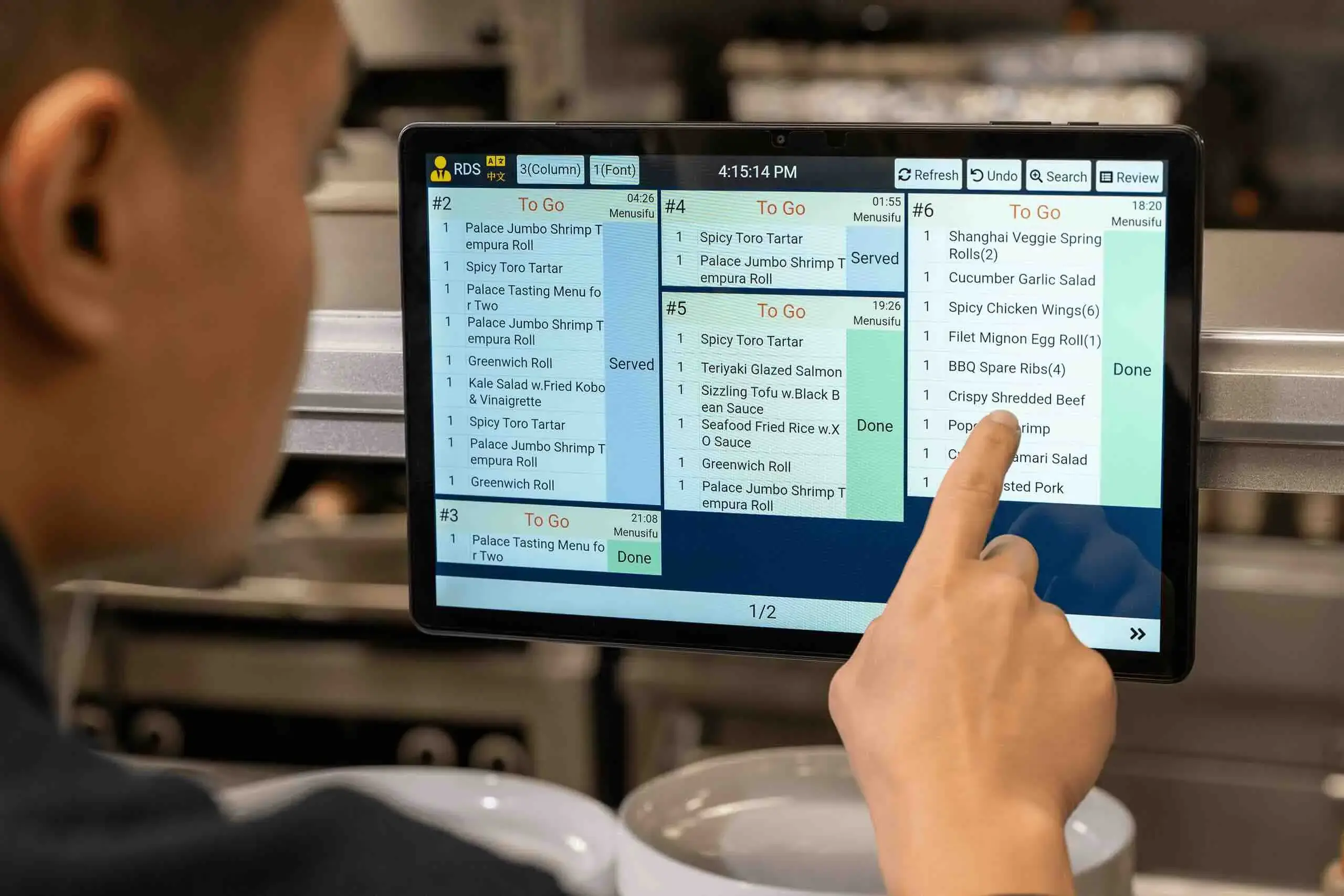
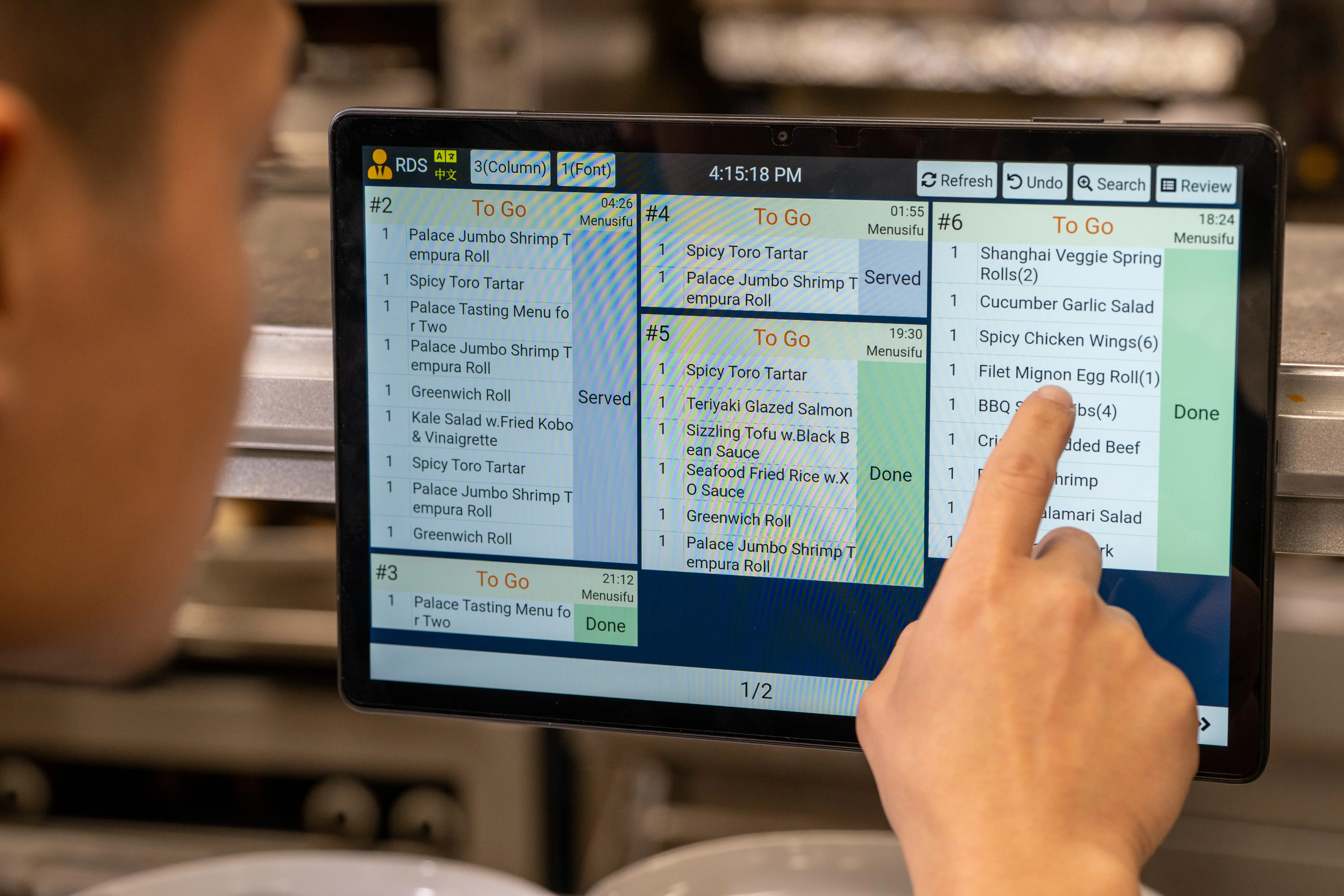
When a dish is ready, MenuSifu KDS can print a small barcode slip that staff scan at the RDS to mark the dish as served. This gives teams a clear step between kitchen completion and final service.

Kitchen display screen showing dine-in and to-go food orders with item names and recall buttons in a fast food restaurant.

Upgrade Your Fast-Food Kitchen With MenuSifu

Replacing paper tickets or an outdated kitchen printer with a KDS can give your team clearer order visibility, better station coordination, real-time updates, and a more reliable workflow during busy service. The right setup should keep order information connected as it moves from the front of house to kitchen preparation and final handoff.

MenuSifu brings these processes together through its KDS and POS system for fast food restaurants. Orders can move from entry to the appropriate kitchen stations while FOH and BOH teams stay updated throughout preparation and service.

If you are considering an upgrade from paper tickets or an older kitchen system, explore MenuSifu KDS or Book a Free Demo with MenuSifu today to see how its KDS and POS solutions can support your daily restaurant operations.

Frequently Asked Questions About the Best Kitchen Display System for Fast Food Restaurants

Choosing a KDS often raises practical questions about POS connectivity, screen setup, offline operation, and the features needed during busy service. The answers below cover a few key points to consider as you compare kitchen display systems.

What Should I Look for in the Best Kitchen Display System for Fast Food?

Look for a KDS that offers real-time order updates, station-based routing, wait-time tracking, flexible order views, POS integration, and reliable offline operation. The system should also support multiple order types, durable kitchen hardware, customizable displays, and multilingual interfaces based on your kitchen's needs. 

Does a KDS Need to Connect With the Restaurant POS?

Yes. A KDS should connect with the restaurant POS so orders can move directly from the point of sale to kitchen displays. This connection helps reduce manual entry, keeps order changes and cancellations current, and gives kitchen staff accurate information throughout preparation. 

How Many KDS Screens Does a Fast-Food Restaurant Need?

A fast-food restaurant may need one KDS screen for a smaller kitchen or multiple screens for separate prep stations such as grill, fryer, beverage, and assembly. Consider order volume, kitchen layout, and how tasks move between stations. Multiple screens can help each team focus on assigned items while keeping order progress synchronized across the kitchen.

What Happens to a KDS If the Internet Connection Becomes Unstable?

If the internet connection becomes unstable, KDS performance depends on its offline capabilities. A system with offline functionality can help kitchen staff continue processing active orders during network disruptions. MenuSifu KDS includes an offline mode designed to keep kitchen operations moving when connectivity is unstable.

Looking for more practical restaurant technology guidance? Visit the MenuSifu blog for more insights on POS systems, kitchen operations, order management, and restaurant technology.

Related Articles:

想把餐厅越开越好?
免费订阅,持续获取行业报告、经营洞察与实用工具。