November 5, 2026
Learn how to create a QR code menu for restaurants in 6 practical steps. Help cut printing costs, share up-to-date menus, and make browsing easier for guests

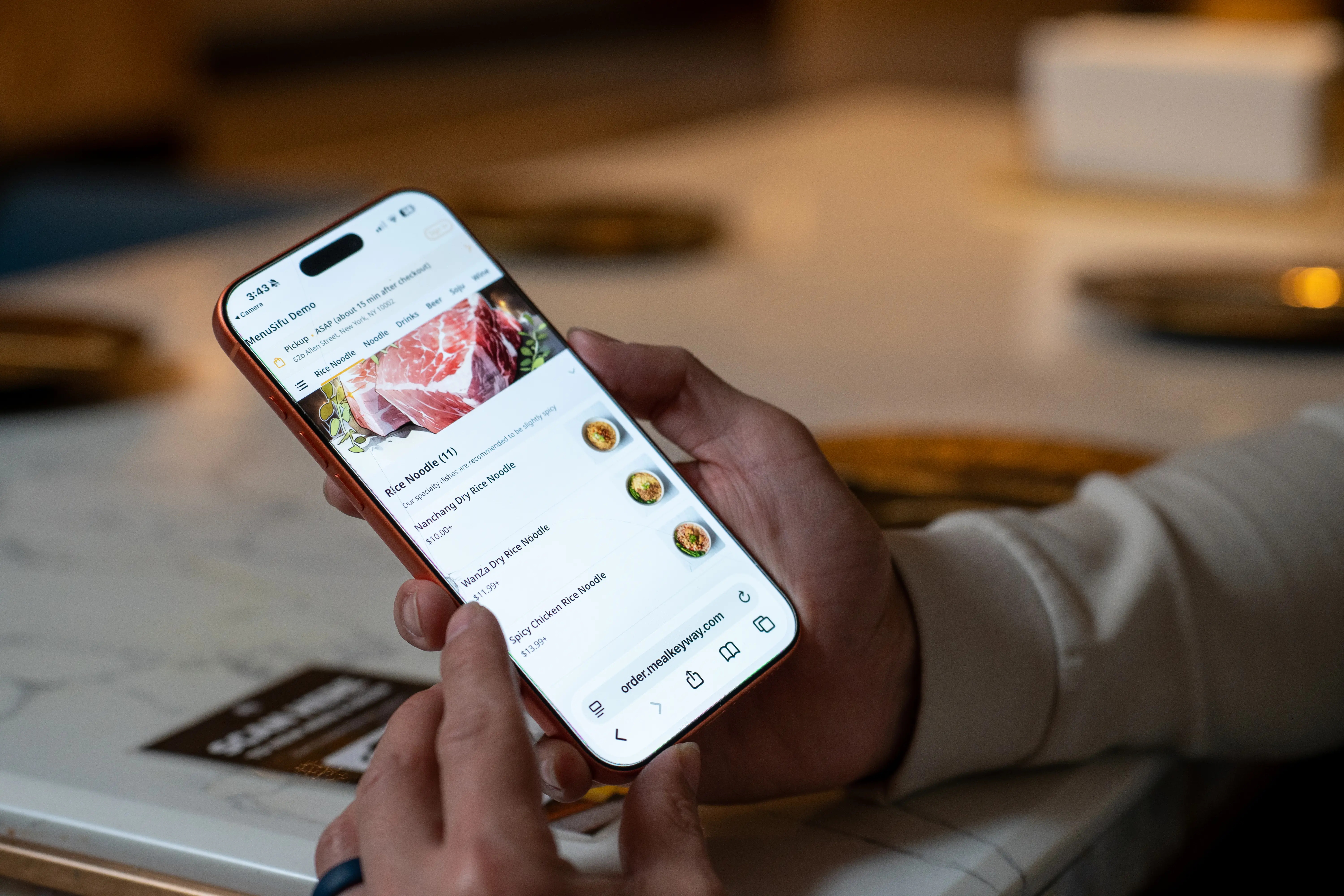
Reprinting menus every time you change prices, add dishes, or update your offerings can be costly and time-consuming. A QR code menu helps you reduce printing costs while giving customers easy access to your latest menu through their smartphones.
If you're wondering how to create a QR code menu for your restaurant, this guide walks you through the process, from preparing your digital menu and generating a QR code to testing and displaying it at your tables.
You can create a QR code menu using an online menu, a QR code generator, and a few printed displays. Follow these six steps to set up a digital menu that customers can easily access from their smartphones.
Start by deciding how you want customers to view your menu after scanning the QR code. Your choice will affect how you present menu items, manage updates, and handle customer orders.
There are three main formats to consider:
If you simply want to replace printed menus, a PDF or mobile-friendly webpage may be sufficient. If you want customers to submit orders directly, consider a QR code menu with ordering capabilities.
After choosing your format, prepare the menu customers will see when they scan your QR code.
Organize your offerings into clear categories, such as appetizers, main courses, beverages, and desserts. Include accurate item names, short descriptions, and current prices. Add high-quality food photos where they help customers identify dishes or explore unfamiliar options.
Keep the layout clean and easy to navigate on smaller screens. Use readable fonts, consistent formatting, and clear category headings. Customers should be able to find a dish and check its price without repeatedly zooming or scrolling through unrelated items.
Once your content is ready, publish the menu through your website, a digital menu platform, or a publicly accessible PDF link.
Before proceeding, open the published link in a private browser window. Confirm that anyone can view the menu without signing in or requesting access.
Copy the final URL, as you'll need it to generate your QR code.
With your digital menu published, you can turn its web address into a QR code.
Choose a reputable QR code generator that supports website links. Paste your menu URL into the designated field and review the available QR code options.
Depending on the generator, you may be able to choose between two types of QR codes:
A static QR code works well when you plan to keep your digital menu at one permanent URL. An editable code offers greater flexibility if you expect to switch menu links or need features such as scan tracking.
Check the generator's pricing and any restrictions before making your selection. Some services require an active subscription to keep their editable codes working.
Next, generate your QR code and download it as a high-resolution PNG or SVG file. SVG files work particularly well for printing because you can resize them without losing image quality.
Save the original file so you can reuse the code across different printed materials.
Before printing your QR code, check that customers can scan it and access the correct menu.
Use your smartphone's camera to scan the code directly from your screen. Open the link and confirm that it displays the published menu. Repeat the process on both iOS and Android devices, if available, to check compatibility.
Once the menu opens, review the following:
Pay particular attention to large PDF files and image-heavy menus, which may take longer to load on slower connections.
If the code does not scan properly, verify the URL and check the code's image quality. Make any necessary adjustments before preparing your printed displays.
Once your QR code passes testing, decide where customers will see it.
For dine-in restaurants, table tents and tabletop stickers provide convenient access to the menu. You can also display codes near the entrance, at ordering counters, or in waiting areas so customers can browse before placing an order.
Use a short instruction such as "Scan to View Menu" above or below the code. This makes its purpose clear, especially to customers who may be unfamiliar with digital menus.
When designing your displays, use a dark QR code against a light background to maintain strong contrast. Leave enough blank space around the code so smartphone cameras can recognize it.
Print a sample at approximately 1 inch (2.5 cm) square or larger, then test it at the intended scanning distance. Increase the size for signs that customers will scan from farther away.
Avoid placing codes on highly reflective surfaces or near decorative elements that interfere with scanning.
Before printing copies for every table, test the finished display under the lighting conditions in your restaurant.
Your QR code menu needs regular updates to provide customers with accurate information.
Review your digital menu whenever you adjust prices, introduce dishes, change ingredients, or discontinue items. If you offer seasonal specials or limited-time promotions, update those details as well.
Keep your published menu URL consistent whenever possible. If your QR code links to a webpage, you can usually update the page's content while retaining the same address. This allows customers to access the latest menu through your existing printed codes.
For PDF menus, check if your hosting platform allows you to replace the document while preserving its public URL. If the link changes and you use a static QR code, you'll need to generate a replacement.
If you frequently change menu availability, a digital menu management platform may simplify updates. Some systems allow you to edit item details or mark dishes as sold out directly from their management interface.
Finally, scan your displayed QR codes periodically to confirm that the links remain active.
Once your QR code menu is set up, you may want to explore additional features that support customer ordering.
The main difference between a QR code menu and QR code ordering is what customers can do after viewing your menu.
A QR code menu displays your dishes, descriptions, and prices on a digital page. Customers can browse the menu, but they still place orders through your staff. This option works well if you want to replace printed menus while keeping your existing ordering process.
QR code ordering allows customers to select items and submit orders directly from their phones. Some systems also support online payments, allowing customers to complete transactions at their tables.
When integrated with a restaurant POS system, QR code ordering can send orders directly to the kitchen, reduce manual order entry, and help staff manage incoming orders more efficiently.
For example, MenuSifu's Scan-to-Order solution offers three modes based on your restaurant's needs:
MenuSifu also connects QR code ordering with its POS system, allowing you to manage incoming orders and update menu items or availability in real time.
If your goal is simply to provide digital menu access, a basic QR code menu may be enough. If you also want to manage orders and payments through one connected system, POS-integrated QR code ordering offers additional capabilities to consider.
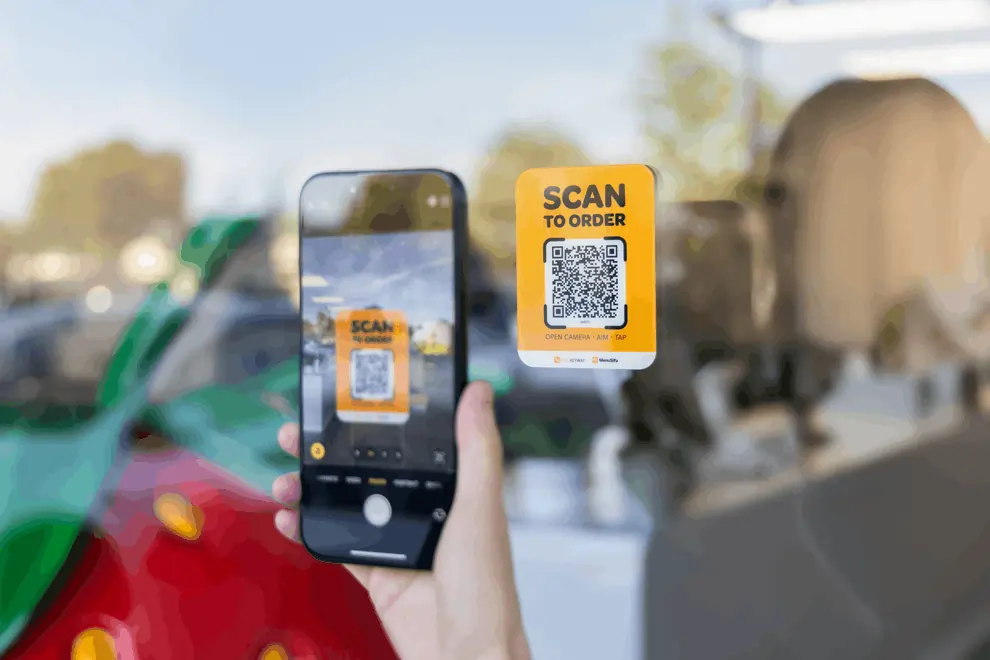
Creating a QR code menu doesn't require an elaborate setup. By choosing a digital menu format, generating a working QR code, and displaying it in accessible locations, you can make your menu easier to access and maintain.
Once your QR code menu is in place, you can explore additional features as your restaurant's needs change. A connected ordering system can be a practical next step if you want to simplify how your team handles customer orders and payments.
Interested in exploring that option? Book a free demo with MenuSifu to see how its Scan-to-Order solution works with MenuSifu POS and learn how it could support your daily operations.
As part of MenuSifu's 2026 Year-End Promotion, eligible customers can get core software, including POS and Scan-to-Order, with no monthly software subscription fees. The offer runs through December 31, 2026. Required hardware must be purchased separately, and other applicable fees may apply.
Here are answers to frequently asked questions about creating, setting up, and using QR code menus in your restaurant.
Yes, you can create a free QR code using an online QR code generator. Upload your PDF menu to a publicly accessible location or publish it on a webpage. Then, copy the menu URL and paste it into the QR code generator. Download the QR code, test it, and display it where customers can easily scan it. Some platforms charge extra for advanced features such as scan tracking and QR code link editing.
No. Most modern smartphones have built-in QR code scanners in their camera apps. Customers simply open their phone's camera, scan the QR code, and tap the link to view your restaurant's digital menu in a web browser.
Yes, you can display the same QR code at multiple tables if it links to a digital menu. Customers can scan it to view your dishes and prices. However, if you use a QR code ordering system, you may need unique QR codes for each table to identify orders and send them to the correct location.
Usually, yes. Most restaurant QR code menus require an internet connection because they link to an online menu or ordering platform. Customers need Wi-Fi or mobile data to access the menu after scanning the code. Providing guest Wi-Fi can help ensure easy access.
Looking for more practical ideas to improve restaurant operations? Explore the MenuSifu blog for restaurant technology insights, digital ordering tips, and updates to help you make informed decisions about your business.